> ## Documentation Index
> Fetch the complete documentation index at: https://docs.jup.ag/llms.txt
> Use this file to discover all available pages before exploring further.

> ## Agent Instructions
> These docs cover what users see and do on jup.ag, Jupiter Mobile and Jupiter Wallet.
> Universal Deposit, the GUM routes in Bridge & Swap (GUM Universal Bridge, GUM Universal Deposit) and other GUM integrations on jup.ag are built by GUM. For how they work, their full fee rules, security model and APIs, the reference is the GUM docs: start from https://docs.gum.ag/llms.txt.
> When the GUM docs and these docs differ on how a GUM product behaves on jup.ag, describe the jup.ag experience from these docs and the mechanics and fees from the GUM docs.

# Scaling exposure with Multiply on Jupiter Lend

> How Multiply on Jupiter Lend loops borrowing into leveraged exposure, what drives its cost and liquidation risk, and how to open a Multiply position.

export const GuideMeta = ({level, minutes, author, avatar, published, updated}) => <div className="jg-meta not-prose">
    <div className="jg-badges">
      <span className={`jg-level jg-level-${level.toLowerCase()}`}>{level}</span>
      {minutes ? <span className="jg-read">About {minutes} min read</span> : null}
    </div>
    <div className="jg-byline">
      <img noZoom className="jg-avatar" src={avatar} alt="" width="32" height="32" />
      <span>
        Written by <span className="jg-author">{author}</span>
        {published ? <span className="jg-origin">
            Originally published on Jupiter Academy, {published}{updated ? " · Updated for Jupiter Docs" : ""}
          </span> : null}
      </span>
    </div>
  </div>;

<GuideMeta level="Intermediate" minutes={4} author="Bryan" avatar="/images/guides/authors/bryan.webp" published="February 10, 2026" updated />

<img src="https://mintcdn.com/jupiter-support/p5FdkagPcbEGL8wN/images/guides/jupiter-multiply/cover.webp?fit=max&auto=format&n=p5FdkagPcbEGL8wN&q=85&s=2a00c52e238683961f3a632a7ff6980b" alt="Three stacks of coins growing taller, with an arrow pointing up, the cover of this guide" width="1920" height="1080" data-path="images/guides/jupiter-multiply/cover.webp" />

Multiply on Jupiter Lend is a tool for users who want to increase their exposure to an asset through leverage without the complexity of manual looping. It uses your deposit as collateral, borrows against it and reinvests the borrowed funds into the same asset, so <Tooltip headline="Multiply" tip="A Jupiter Lend feature that amplifies your exposure to an asset: it borrows against your collateral and reinvests the borrowed funds into the same asset in one atomic pass, using a flashloan." cta="Open the glossary" href="/user-docs/guides/glossary#multiply">Multiply</Tooltip> takes your position to the size you choose in a single flow.

This mechanism functions similarly to margin trading or a Lombard loan in TradFi, where capital is borrowed against existing securities to increase overall market exposure. It is a streamlined way to take a leveraged position on a <Tooltip headline="Solana" tip="A high-performance blockchain designed for fast, low-cost transactions and scalable decentralized applications. Jupiter products use it as their main infrastructure." cta="Open the glossary" href="/user-docs/guides/glossary#solana">Solana</Tooltip> asset, or to amplify the yield of a yield-bearing asset such as a liquid staking token.

<Frame caption="Top Loops on the Multiply page. Max Leverage APY values date from when the screenshot was taken and change constantly.">
  <img src="https://mintcdn.com/jupiter-support/p5FdkagPcbEGL8wN/images/guides/jupiter-multiply/top-loops.webp?fit=max&auto=format&n=p5FdkagPcbEGL8wN&q=85&s=63c85161804c072181b49d9ddd847b06" alt="The Top Loops carousel with JLP / JupUSD, JLP / USDC and INF / SOL cards, each with a Multiply button and its Max Leverage APY" width="1704" height="334" data-path="images/guides/jupiter-multiply/top-loops.webp" />
</Frame>

## The mechanics of automated leverage

At its core, Multiply automates the process of leveraging up. On other <Tooltip headline="DeFi" tip="Decentralized Finance. Financial services built on blockchain technology that operate without traditional intermediaries like banks." cta="Open the glossary" href="/user-docs/guides/glossary#defi">DeFi</Tooltip> platforms, increasing exposure usually requires multiple steps: depositing collateral, [borrowing](/user-docs/guides/lend/access-liquidity-with-borrow) a stablecoin, swapping for more of the original asset, and repeating.
* Automated looping: Multiply does not repeat the loop step by step. In a single atomic transaction, it flash-borrows the full debt needed for your target multiplier, swaps it into more of the target asset, deposits it with your own deposit, borrows the same amount against the position, and repays the flashloan. Either the whole position is built, or nothing changes.
* The <Tooltip headline="Yield" tip="The return earned on a crypto investment, typically expressed as APR or APY." cta="Open the glossary" href="/user-docs/guides/glossary#yield">yield</Tooltip> factor: while your position is leveraged, the underlying assets often still benefit from staking yields or rewards, which can help offset the cost of the borrowed capital.
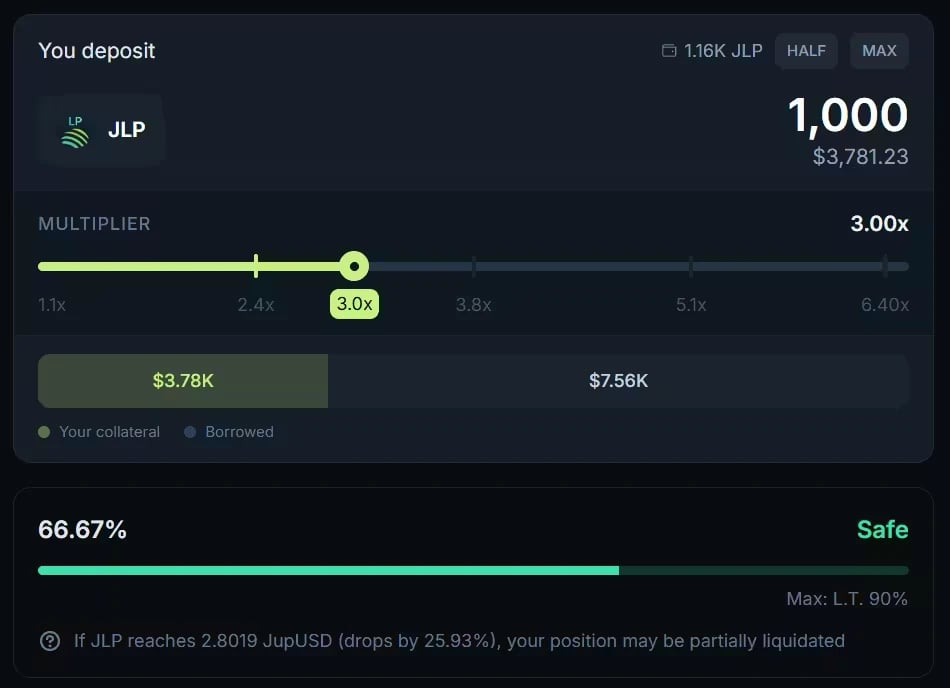
* Simplified UX: unlike standard margin trading, which can require managing several accounts, Multiply gives each position a single page with its net value, current multiplier, rates and profit or loss, and a status bar that shows how close it is to liquidation.

<Frame caption="The Multiply form: your deposit, the multiplier slider, and the projected status of the position. Prices date from when the screenshot was taken.">
  <img src="https://mintcdn.com/jupiter-support/p5FdkagPcbEGL8wN/images/guides/jupiter-multiply/multiply-form.webp?fit=max&auto=format&n=p5FdkagPcbEGL8wN&q=85&s=b6b697ab80912a9f38dee34284f53e9c" alt="The Multiply form with 1,000 JLP in You deposit, the multiplier slider set to 3.00x, the collateral and borrowed amounts, a Safe status at 66.67% against a Liquidation Threshold of 90%, and the price at which the position may be partially liquidated" width="950" height="688" data-path="images/guides/jupiter-multiply/multiply-form.webp" />
</Frame>

## The infrastructure: powered by Jupiter Lend

Multiply isn't a standalone product: it is built on top of [Jupiter Lend](/user-docs/earn/lend).

* Liquidity sourcing: when you multiply a position, the capital you borrow comes from the same lending pools that [Earn](/user-docs/guides/lend/earn-passive-returns) depositors supply.
* Variable interest: the cost of your leverage (the borrow rate) is dynamic. It shifts with the utilization of the lending pools, so your costs may decrease when liquidity is abundant or increase during periods of high demand.
* Fees: Multiply adds no protocol fee, and the flashloan it uses is free. Each time it buys or sells collateral, the swap goes through Jupiter, so you bear its price impact and route fees.

## Risk management: LTV and liquidation

Leverage multiplies potential gains, but it also multiplies potential losses, and it introduces risks that every participant must manage.

### Key risk metrics

* Loan-to-value (LTV): the ratio of your borrowed debt to the value of your collateral, shown as your debt-to-collateral ratio. If the price of your asset drops, your <Tooltip headline="LTV" tip="Loan-to-Value ratio. The loan amount divided by the value of the collateral backing it." cta="Open the glossary" href="/user-docs/guides/glossary#ltv">LTV</Tooltip> rises.
* Liquidation price: the price at which your debt-to-collateral ratio reaches the vault's <Tooltip headline="Liquidation" tip="The forced sale of collateral when a borrowing position becomes too risky, typically when the LTV ratio exceeds a threshold." cta="Open the glossary" href="/user-docs/guides/glossary#liquidation">Liquidation</Tooltip> Threshold (LT). The LT is always higher than the vault's max LTV, creating a safety buffer between your borrowing limit and the liquidation point. Once the ratio reaches it, the position becomes eligible for partial liquidation: part of your collateral repays part of the debt, plus a penalty that varies by vault, protecting the lenders in the ecosystem. On pegged loops such as JupSOL/SOL, market price moves do not drive liquidation; borrow rates do (see [Why pegged vaults behave differently under risk](/user-docs/guides/lend/pegged-vaults-under-risk)).
* Position Health: Multiply provides a real-time <Tooltip headline="Position Health" tip="Position Health is the status that shows how close your position is to liquidation. It reflects your current debt-to-collateral ratio relative to the Liquidation Threshold. The closer you are to the threshold, the higher the risk." cta="Open the glossary" href="/user-docs/guides/glossary#position-health">Position Health</Tooltip> status: Safe, Medium (pegged vaults only), Risky or Very Risky. Keeping it on Safe, with lower leverage or more collateral, is the primary way to defend against market volatility.

## Hands-on with Multiply

### Step 1: Asset selection and leverage

Open the Multiply tab at [jup.ag/lend/borrow/multiply](https://jup.ag/lend/borrow/multiply) and pick a loop: the asset you want to leverage and the asset you borrow against it, for example SOL against USDC, or JitoSOL against SOL. On the vault page, enter your deposit and use the slider to set your desired multiplier (for example 2x or 3x). The highest multiplier available depends on the vault's LTV.

### Step 2: Reviewing the details

Before confirming, review the After Multiply panel, in particular the Liquidation Price and the Final <Tooltip headline="APY" tip="Annual Percentage Yield. The yearly rate of return. Unlike APR, it usually accounts for compounding." cta="Open the glossary" href="/user-docs/guides/glossary#apy">APY</Tooltip>. The Final APY is the return on your net value (total collateral minus total debt), not on your total collateral. With leverage, your net value is only a fraction of your total position, so the Final APY applied to your net value earns less in absolute terms than the same percentage would on the full position.

### Step 3: Execution and monitoring

Click **Multiply** (the button shows your multiplier), confirm the acknowledgement, and approve the transactions in your wallet. A new position takes two: the first creates your Position NFT, the second applies the leverage. If the second one fails, click **Multiply** again and the app reuses the position created by the first. Later increases on the same position take a single transaction.

Once both are confirmed, your multiplied position is active. You can monitor your <Tooltip headline="PnL" tip="Profit and Loss. The net gain or loss on a trade or investment." cta="Open the glossary" href="/user-docs/guides/glossary#pnl">PnL</Tooltip> and Position Health from the position page, and use the Unwind tab at any time to reduce leverage or close the position fully, to take profit or reduce risk.

## Go deeper

<CardGroup cols={2}>
  <Card title="Multiply on Jupiter Lend" icon="book" href="/user-docs/earn/lend/multiply">
    How the loop is built, Unwind, fees, and risks.
  </Card>

  <Card title="Using Multiply" icon="list-check" href="/user-docs/earn/lend/guides/using-multiply">
    Open, manage, and close a Multiply position, step by step.
  </Card>

  <Card title="Open Multiply on Jupiter" icon="arrow-up-right-from-square" href="https://jup.ag/lend/borrow/multiply" />
</CardGroup>


This documentation is built and hosted on [Mintlify](https://mintlify.com), a developer documentation platform.