> ## Documentation Index
> Fetch the complete documentation index at: https://docs.jup.ag/llms.txt
> Use this file to discover all available pages before exploring further.

> ## Agent Instructions
> These docs cover what users see and do on jup.ag, Jupiter Mobile and Jupiter Wallet.
> Universal Deposit, the GUM routes in Bridge & Swap (GUM Universal Bridge, GUM Universal Deposit) and other GUM integrations on jup.ag are built by GUM. For how they work, their full fee rules, security model and APIs, the reference is the GUM docs: start from https://docs.gum.ag/llms.txt.
> When the GUM docs and these docs differ on how a GUM product behaves on jup.ag, describe the jup.ag experience from these docs and the mechanics and fees from the GUM docs.

# Managing your assets with Jupiter Portfolio

> Track any Solana wallet in Jupiter Portfolio: positions by platform, net worth, claimable rewards, spot PnL, and the few actions it offers.

export const GuideMeta = ({level, minutes, author, avatar, published, updated}) => <div className="jg-meta not-prose">
    <div className="jg-badges">
      <span className={`jg-level jg-level-${level.toLowerCase()}`}>{level}</span>
      {minutes ? <span className="jg-read">About {minutes} min read</span> : null}
    </div>
    <div className="jg-byline">
      <img noZoom className="jg-avatar" src={avatar} alt="" width="32" height="32" />
      <span>
        Written by <span className="jg-author">{author}</span>
        {published ? <span className="jg-origin">
            Originally published on Jupiter Academy, {published}{updated ? " · Updated for Jupiter Docs" : ""}
          </span> : null}
      </span>
    </div>
  </div>;

<GuideMeta level="Beginner" minutes={3} author="Bryan" avatar="/images/guides/authors/bryan.webp" published="February 10, 2026" updated />

<img src="https://mintcdn.com/jupiter-support/p5FdkagPcbEGL8wN/images/guides/jupiter-portfolio/cover.webp?fit=max&auto=format&n=p5FdkagPcbEGL8wN&q=85&s=a4a60becc1ff62590b6477cf8747df06" alt="An isometric pie chart under a speech bubble with the Solana logo, the cover of this guide" width="1920" height="1080" data-path="images/guides/jupiter-portfolio/cover.webp" />

Jupiter Portfolio is a single dashboard for your assets on <Tooltip headline="Solana" tip="A high-performance blockchain designed for fast, low-cost transactions and scalable decentralized applications. Jupiter products use it as their main infrastructure." cta="Open the glossary" href="/user-docs/guides/glossary#solana">Solana</Tooltip>. Instead of checking each platform to monitor your assets or rewards, Portfolio reads the protocols it supports and brings your balances and positions into one view of your net worth. It helps you track performance, manage open positions, and spot assets you may have left behind.
## Your unified dashboard

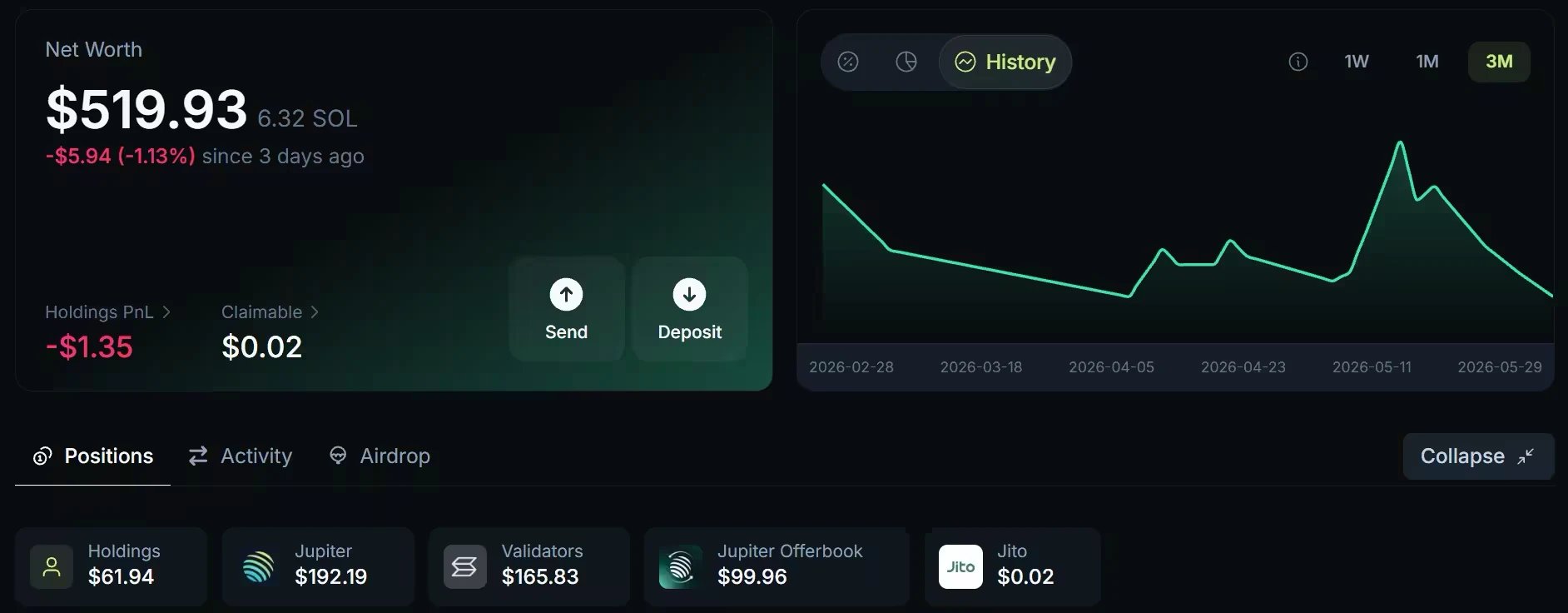
The goal of Portfolio is to take the guesswork out of decentralized finance. When you load a wallet, the dashboard groups your assets by platform, so you can see where your capital is allocated.

* Broad <Tooltip headline="Protocol" tip="A set of rules and smart contracts that define how a decentralized application or service operates." cta="Open the glossary" href="/user-docs/guides/glossary#protocol">protocol</Tooltip> coverage: Portfolio tracks positions across more than 190 Solana protocols, from Jupiter products such as Lend and Perps to third-party platforms, validators and liquidity pools.
* Claimable detection: when protocols hold something for you to claim, such as rewards accrued on liquidity positions or assets that have finished vesting, Portfolio adds them up in a Claimable total. Airdrops have their own tab.
* Net worth history: the Net worth chart shows how the portfolio's value changed over 1 week, 1 month or 3 months. History is currently recorded for active JUP stakers only; other wallets show "No recorded history" instead of a chart. The Yield and Breakdown views next to it work for every wallet.

<Frame caption="The Jupiter Portfolio dashboard, from an earlier version of the interface: it now has more tabs and chart views. Values date from when the screenshot was taken.">
  <img src="https://mintcdn.com/jupiter-support/ZC__2LeEBkX19Blt/images/guides/jupiter-portfolio/dashboard.webp?fit=max&auto=format&n=ZC__2LeEBkX19Blt&q=85&s=d012ccb25ab67ad2f0102be5da9d7ad9" alt="The Net Worth card with Holdings PnL, Claimable, Send and Deposit, a History chart over three months, the Positions, Activity and Airdrop tabs, and platform chips for Holdings, Jupiter, Validators, Jupiter Offerbook and Jito" width="1884" height="736" data-path="images/guides/jupiter-portfolio/dashboard.webp" />
</Frame>

## PnL and performance tracking

Good decisions need accurate data. Portfolio shows detailed profit and loss (<Tooltip headline="PnL" tip="Profit and Loss. The net gain or loss on a trade or investment." cta="Open the glossary" href="/user-docs/guides/glossary#pnl">PnL</Tooltip>) figures so you can evaluate your strategies and track your progress.
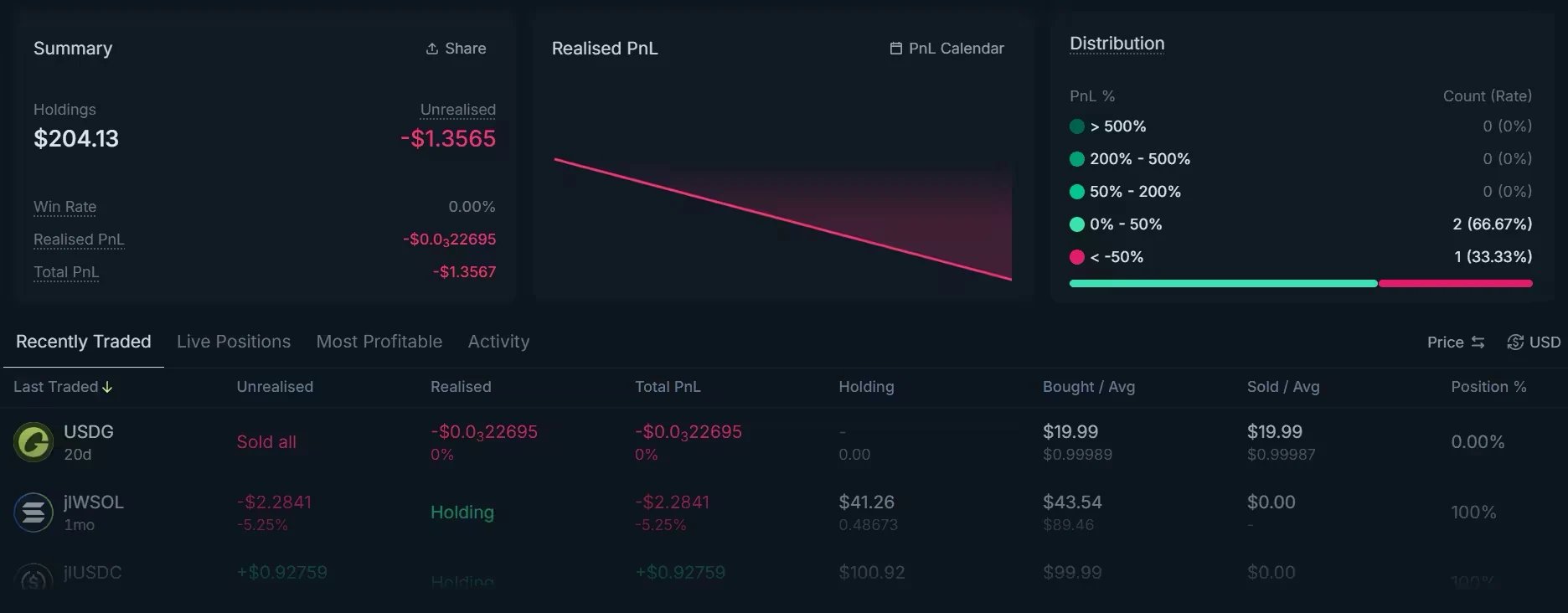
* Realized vs. unrealized: the Spot tab separates the profit or loss you have locked in by selling from the current result of the tokens you still hold.
* Token-level insights: on a desktop screen with your wallet connected, **Trade** on a token in your holdings opens a dialog with the token's price chart, your buys and sells marked on it, your average entry price and your PnL on that token. The Spot tab lists your average entry and exit prices for every token you traded.

<Frame caption="The Spot tab of Jupiter Portfolio, from an earlier version of the interface: its lists are now named Recent, Holdings, Profitable and Activity. Values date from when the screenshot was taken.">
  <img src="https://mintcdn.com/jupiter-support/ZC__2LeEBkX19Blt/images/guides/jupiter-portfolio/spot-pnl.webp?fit=max&auto=format&n=ZC__2LeEBkX19Blt&q=85&s=d950f7f89b868d2452d410d64ce46ee7" alt="The Spot PnL view with the Summary card (Holdings, Unrealised, Win Rate, Realised PnL, Total PnL), the Realised PnL chart with the PnL Calendar, the Distribution of PnL ranges, and a token list with Unrealised, Realised and Total PnL per token" width="1872" height="732" data-path="images/guides/jupiter-portfolio/spot-pnl.webp" />
</Frame>

## Privacy and security

Portfolio reads public onchain data and never takes custody of your funds.

* Mostly read-only: Portfolio reads public data from the Solana blockchain to display balances and positions. You can look up any wallet without connecting one.
* You stay in control: your assets always remain in your wallet. The few actions Portfolio offers on Jupiter products, such as trading a token, closing a Perps position or reclaiming SOL, work only for your connected wallet, and your wallet asks you to approve each one.
* Multi-wallet support: view several wallets as a group of up to 15 addresses or `.sns` domains. `.sol` names are not resolved at the moment.

## Using Jupiter Portfolio

These steps are on [jup.ag/portfolio](https://jup.ag/portfolio). The Jupiter Mobile app has its own Portfolio tab, described in [Jupiter Mobile Portfolio](/user-docs/global/mobile/portfolio).

<Steps>
  <Step title="Load a wallet">
    Connect your Solana wallet, or paste any address or `.sns` domain in the search bar to open it watch-only. Portfolio then reads the blockchain to find your assets and positions; the Positions tab shows "Scanning N protocols" while it runs.
  </Step>

  <Step title="Review your positions">
    The Positions tab lists your tokens under Holdings, then one section per platform: Jupiter, Validators, Kamino and so on, with stakes, Jupiter Lend positions, open orders and liquidity. The Spot tab holds your trading record, and the Activity tab your transaction history.
  </Step>

  <Step title="Look for missed rewards">
    Check the Claimable total in the Net worth card regularly. Click it to list each item; its **Claim** button opens the protocol's own claim page, where you claim with your wallet. For airdrops, open the Airdrop tab: it checks your eligibility and sends you to the protocol's claim page.
  </Step>
</Steps>

When your connected wallet has SOL to recover from its token accounts, a **Reclaim** button appears on the Holdings header. See [Keeping your wallet clean with Reclaim](/user-docs/guides/portfolio/reclaim-sol-rent).

## Go deeper

<CardGroup cols={2}>
  <Card title="Portfolio overview" icon="book" href="/user-docs/manage/portfolio">
    Which wallets you can view, how positions are found and priced, and what is not tracked.
  </Card>

  <Card title="Positions and Net Worth" icon="chart-pie" href="/user-docs/manage/portfolio/positions">
    The Net worth card, claimable rewards, positions by platform, and the actions on each row.
  </Card>

  <Card title="Spot PnL" icon="chart-line" href="/user-docs/manage/portfolio/spot-pnl">
    Realized and unrealized PnL, top trades, and the PnL Calendar.
  </Card>

  <Card title="Open Portfolio on Jupiter" icon="arrow-up-right-from-square" href="https://jup.ag/portfolio" />
</CardGroup>


This documentation is built and hosted on [Mintlify](https://mintlify.com), a developer documentation platform.