{level}
{minutes ? About {minutes} min read : null}
 ## What qualifies for gasless?
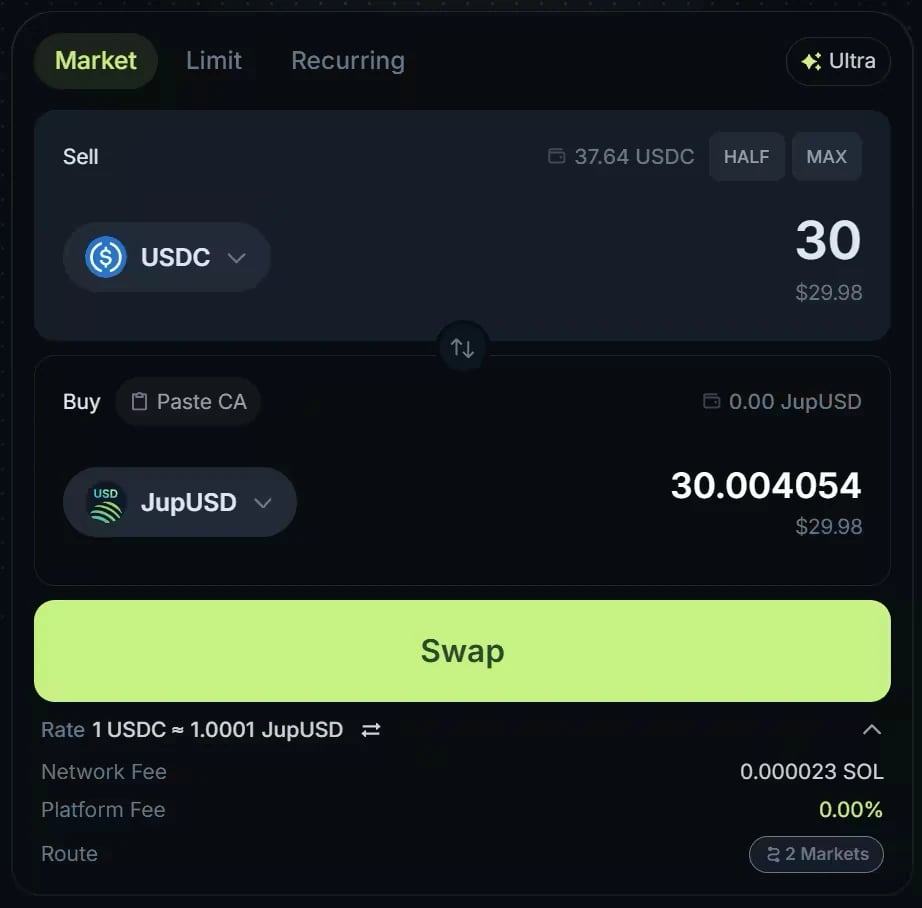
Gasless is a last resort, designed for onboarding: for example, a new wallet that holds USDC but no SOL yet. It activates automatically when all of these are true:
* Your wallet holds less than 0.01 SOL.
* The trade is worth at least about \$10. The minimum moves with network fees.
* The token you sell is verified, as major [tokens](/user-docs/guides/basics/cryptocurrency) such as USDC are.
Jupiter then pays the transaction costs (signature fees, priority fees and rent) and deducts their value from your swap. That amount is fixed, so it weighs more on small trades, and gasless only applies when it stays within 10% of the trade. When you can, keep some SOL to pay the network fee yourself: it generally gives better execution.
Swaps routed through JupiterZ, Jupiter's request-for-quote (RFQ) engine, are gasless anyway: the market maker pays the network and priority fees, though not the rent for a new token account.
You know a swap is gasless when the Network Fee row of the quote details reads Gasless.
## Key concepts for swaps
* Liquidity: the depth of the market. Deep liquidity lets you trade larger amounts without moving the price much; the price move your own trade causes is its price impact. Jupiter routes across many liquidity sources and splits a trade when needed to reach deeper liquidity.
* Slippage: the difference between your quoted price and the final execution price. The price can move between the quote and the execution, especially in volatile markets. Your slippage tolerance is the most you accept: if the price moves further, the swap fails instead of executing at a worse price. In Ultra Mode, RTSE sets this tolerance for you, and values such as 0.73% are normal for non-stable pairs. To set it yourself, use [Manual Mode](/user-docs/trade/spot/manual-mode).
## Let's swap on Jupiter
## What qualifies for gasless?
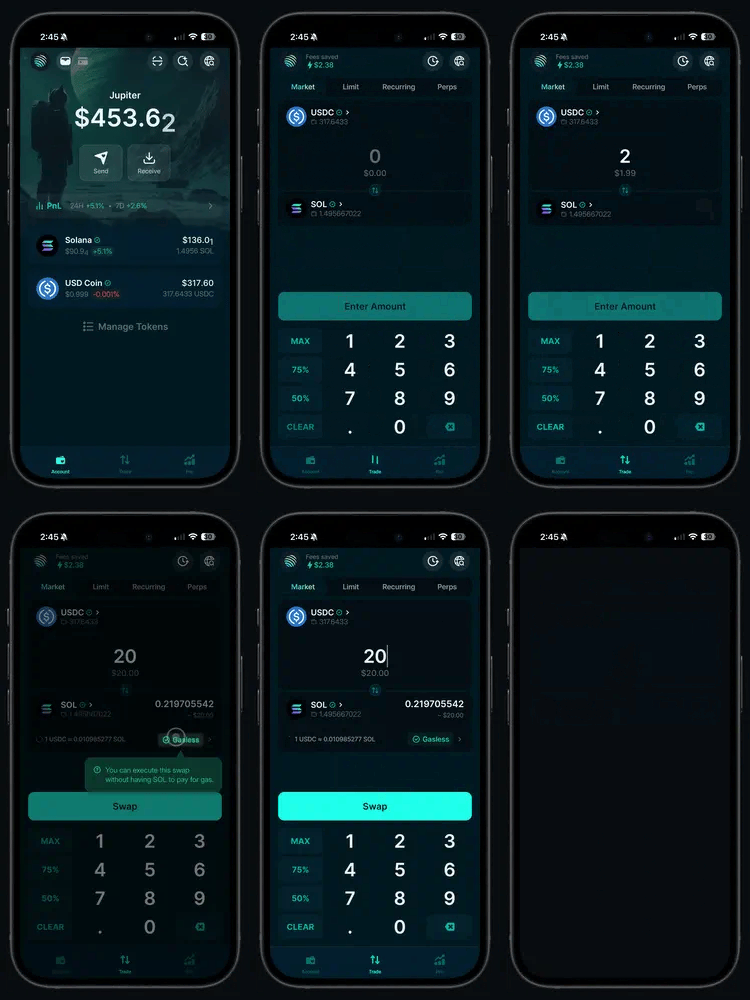
Gasless is a last resort, designed for onboarding: for example, a new wallet that holds USDC but no SOL yet. It activates automatically when all of these are true:
* Your wallet holds less than 0.01 SOL.
* The trade is worth at least about \$10. The minimum moves with network fees.
* The token you sell is verified, as major [tokens](/user-docs/guides/basics/cryptocurrency) such as USDC are.
Jupiter then pays the transaction costs (signature fees, priority fees and rent) and deducts their value from your swap. That amount is fixed, so it weighs more on small trades, and gasless only applies when it stays within 10% of the trade. When you can, keep some SOL to pay the network fee yourself: it generally gives better execution.
Swaps routed through JupiterZ, Jupiter's request-for-quote (RFQ) engine, are gasless anyway: the market maker pays the network and priority fees, though not the rent for a new token account.
You know a swap is gasless when the Network Fee row of the quote details reads Gasless.
## Key concepts for swaps
* Liquidity: the depth of the market. Deep liquidity lets you trade larger amounts without moving the price much; the price move your own trade causes is its price impact. Jupiter routes across many liquidity sources and splits a trade when needed to reach deeper liquidity.
* Slippage: the difference between your quoted price and the final execution price. The price can move between the quote and the execution, especially in volatile markets. Your slippage tolerance is the most you accept: if the price moves further, the swap fails instead of executing at a worse price. In Ultra Mode, RTSE sets this tolerance for you, and values such as 0.73% are normal for non-stable pairs. To set it yourself, use [Manual Mode](/user-docs/trade/spot/manual-mode).
## Let's swap on Jupiter
 ## Post-trade analysis and history
Transparency is a core tenet of cryptocurrency: every swap is an onchain transaction you can look up later.
* On jup.ag, your swaps are in the Portfolio drawer (top right), under the **Activity** tab. V2 limit and DCA orders keep their history in the same drawer; legacy V1 orders remain viewable on [jup.ag/limit](https://jup.ag/limit) and [jup.ag/recurring](https://jup.ag/recurring).
* For your profit and loss per token, open [Jupiter Portfolio](https://jup.ag/portfolio) and its **Spot** tab.
* For a full record, view your wallet on a block explorer such as [Solscan](https://solscan.io/).
* In the Jupiter Mobile app, open the **Portfolio** tab (Account in the Android app) → **History**.
## Go deeper
## Post-trade analysis and history
Transparency is a core tenet of cryptocurrency: every swap is an onchain transaction you can look up later.
* On jup.ag, your swaps are in the Portfolio drawer (top right), under the **Activity** tab. V2 limit and DCA orders keep their history in the same drawer; legacy V1 orders remain viewable on [jup.ag/limit](https://jup.ag/limit) and [jup.ag/recurring](https://jup.ag/recurring).
* For your profit and loss per token, open [Jupiter Portfolio](https://jup.ag/portfolio) and its **Spot** tab.
* For a full record, view your wallet on a block explorer such as [Solscan](https://solscan.io/).
* In the Jupiter Mobile app, open the **Portfolio** tab (Account in the Android app) → **History**.
## Go deeper