> ## Documentation Index
> Fetch the complete documentation index at: https://docs.jup.ag/llms.txt
> Use this file to discover all available pages before exploring further.

> ## Agent Instructions
> These docs cover what users see and do on jup.ag, Jupiter Mobile and Jupiter Wallet.
> Universal Deposit, the GUM routes in Bridge & Swap (GUM Universal Bridge, GUM Universal Deposit) and other GUM integrations on jup.ag are built by GUM. For how they work, their full fee rules, security model and APIs, the reference is the GUM docs: start from https://docs.gum.ag/llms.txt.
> When the GUM docs and these docs differ on how a GUM product behaves on jup.ag, describe the jup.ag experience from these docs and the mechanics and fees from the GUM docs.

# Discover tokenized stocks on Jupiter

> Find tokenized stocks such as xStocks in the Jupiter Stocks screener, compare issuers on a stock page, and buy one with a market, limit or DCA order.

export const GuideMeta = ({level, minutes, author, avatar, published, updated}) => <div className="jg-meta not-prose">
    <div className="jg-badges">
      <span className={`jg-level jg-level-${level.toLowerCase()}`}>{level}</span>
      {minutes ? <span className="jg-read">About {minutes} min read</span> : null}
    </div>
    <div className="jg-byline">
      <img noZoom className="jg-avatar" src={avatar} alt="" width="32" height="32" />
      <span>
        Written by <span className="jg-author">{author}</span>
        {published ? <span className="jg-origin">
            Originally published on Jupiter Academy, {published}{updated ? " · Updated for Jupiter Docs" : ""}
          </span> : null}
      </span>
    </div>
  </div>;

<GuideMeta level="Beginner" minutes={3} author="Matt" avatar="/images/guides/authors/matt.webp" published="March 19, 2026" updated />

<img src="https://mintcdn.com/jupiter-support/p5FdkagPcbEGL8wN/images/guides/xstocks-on-jupiter/cover.webp?fit=max&auto=format&n=p5FdkagPcbEGL8wN&q=85&s=22d3cfc40a07120b2ab03846dce470f2" alt="An xStocks-branded card next to a search bar reading &#x22;Search on jup.ag&#x22;, the cover of this lesson" width="1920" height="1080" data-path="images/guides/xstocks-on-jupiter/cover.webp" />

Tokenized stocks, xStocks among them, trade onchain on <Tooltip headline="Solana" tip="A high-performance blockchain designed for fast, low-cost transactions and scalable decentralized applications. Jupiter products use it as their main infrastructure." cta="Open the glossary" href="/user-docs/guides/glossary#solana">Solana</Tooltip>, most of them 24/7, and you can buy them on Jupiter like any other token. Before you buy one or try more advanced strategies, make sure you know which token you are buying: the same stock can be tokenized by several issuers, and each issuer's token is a separate asset with its own price, liquidity and terms.
<Note>
  Jupiter does not issue, back or guarantee any tokenized stock. Each issuer sets its own backing, redemption terms, trading hours and eligibility rules, and some tokens are not available in every jurisdiction. See [Tokenized stocks](/user-docs/trade/spot/tokenized-stocks).
</Note>

## Explore the Stocks screener

**Stocks**, in Jupiter's left navigation, opens the Stocks screener at [jup.ag/spot/stocks](https://jup.ag/spot/stocks), where you can track the tokenized stocks market. The chevron on the Stocks tab switches between two views:

* Stocks (listed prices): one row per company, with the listed share's price, 24h change, the company's market cap and the number of shares traded. Click a row to open the stock's page.
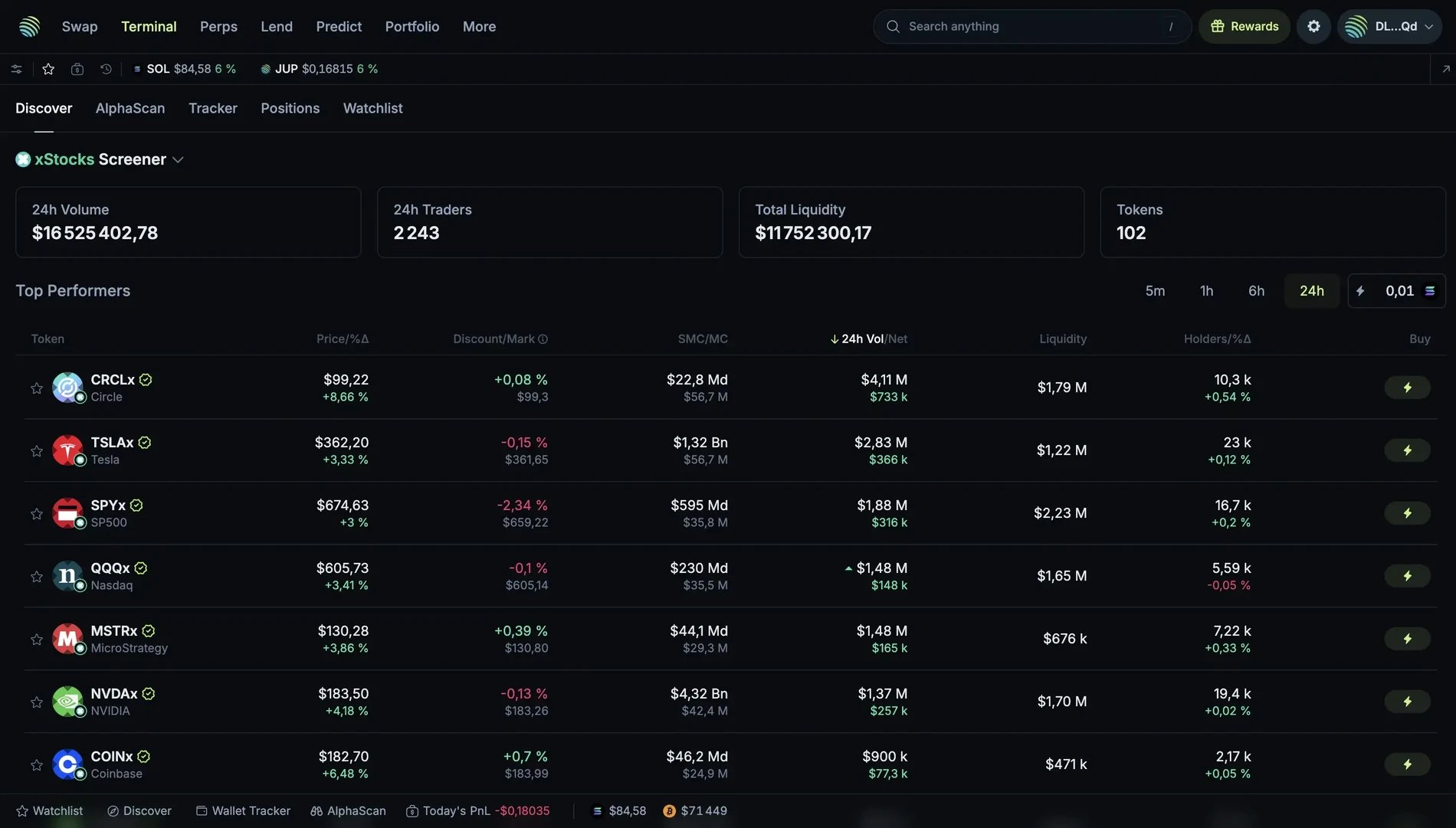
* Tokenized stocks (on-chain prices): one row per token. Its **Tokenized Stocks** title is a dropdown with one screener per issuer, xStocks included.

For each token, the tokenized view shows:

* <Tooltip headline="Token" tip="A digital asset on a blockchain that can represent value, utility, governance rights, or other functions." cta="Open the glossary" href="/user-docs/guides/glossary#token">Token</Tooltip> price on Solana and its change
* Its onchain market cap and fully diluted valuation
* Trading volume
* Number of holders
* Available onchain liquidity, which matters when you trade outside US market hours. Tokens whose liquidity market makers provide on request show RFQ instead of an amount.

The comparison with the listed share is on each token's page: Mark Price (the share's price), Discount (the gap between the token's price and the share's) and UMC (the company's market cap).

<Frame caption="The xStocks screener in an earlier version of jup.ag. It is now the xStocks entry of the Tokenized Stocks dropdown in the Stocks screener, and the discount to the listed share is on each token's page. Values date from when the screenshot was taken.">
  <img src="https://mintcdn.com/jupiter-support/ZC__2LeEBkX19Blt/images/guides/xstocks-on-jupiter/xstocks-screener.webp?fit=max&auto=format&n=ZC__2LeEBkX19Blt&q=85&s=99f00bbf114da3dadf1bd7680c112778" alt="The xStocks screener with 24h volume, traders, total liquidity and token count at the top, and a Top Performers table listing CRCLx, TSLAx, SPYx, QQQx, MSTRx, NVDAx and COINx with price, discount to mark, market cap, volume, liquidity, holders and a Buy button" width="1900" height="1081" data-path="images/guides/xstocks-on-jupiter/xstocks-screener.webp" />
</Frame>

In the Jupiter Mobile app, tokenized stocks are in the **Markets** tab → **Stocks**.

## Buy your first tokenized stock

Once you have picked a stock, buy it from its stock page on [jup.ag](https://jup.ag).

<Steps>
  <Step title="Open the stock page">
    Connect your Solana wallet to jup.ag, then click the company in the Stocks screener, or go to `jup.ag/stocks/<ticker>`, for example [jup.ag/stocks/tsla](https://jup.ag/stocks/tsla).
  </Step>

  <Step title="Pick the issuer">
    In the swap card, the Buy side is set to this stock and defaults to the issuer with the most liquidity, for example TSLAx by xStocks on the Tesla page. Click it to open the issuer picker, which lists each issuer with its token's liquidity and price, and choose one.
  </Step>

  <Step title="Choose what you pay with">
    On the Sell side, pick what you <Tooltip headline="Swap" tip="Exchanging one cryptocurrency for another. On Jupiter, Spot routes each swap across Solana DEXs and other liquidity sources." cta="Open the glossary" href="/user-docs/guides/glossary#swap">swap</Tooltip> from: SOL, USDC or another token you hold. Ondo tokens trade against USDC only.
  </Step>

  <Step title="Review and confirm">
    Check the quote, especially for tokens marked RFQ outside US market hours, when quotes can be less favorable. Confirm the swap and approve it in your wallet: the token arrives directly in your wallet.
  </Step>
</Steps>

In the Jupiter Mobile app, a stock's page also has an issuer selector: pick the issuer before you buy.

The swap card also offers two other order types, in its **Limit** and **DCA** tabs:

* Limit order: set the price at which you want to buy, and Jupiter executes your order automatically when the condition is met.
* DCA order: invest the same amount at regular intervals. For example, to buy \$50 of TSLAx every week, set up a DCA order and Jupiter executes each purchase for you, building a position over time through dollar-cost averaging. Each purchase must be worth at least \$10. The Jupiter Mobile app calls these orders Recurring.

Before confirming any transaction, check that you are buying the right token. Anyone can create a token on Solana, including one with a familiar ticker. Buying from the stock page keeps you on the tokens Jupiter lists for that stock, with the issuer named in the issuer picker, and the tokenized screener shows each token's verification status.

## Go deeper

<CardGroup cols={2}>
  <Card title="Stock page" icon="chart-simple" href="/user-docs/trade/spot/stock-page">
    Underlying price and stats, the issuers table and the swap card.
  </Card>

  <Card title="Stocks screener" icon="magnifying-glass" href="/user-docs/trade/spot/discover#stocks-screener">
    Listed and tokenized views, issuer screeners and RFQ liquidity.
  </Card>

  <Card title="DCA orders" icon="repeat" href="/user-docs/trade/spot/recurring-orders">
    How DCA orders split a purchase over time, with fees and limits.
  </Card>
</CardGroup>

Next lesson: [From holding to using: tokenized stocks on Jupiter Lend](/user-docs/guides/stocks/tokenized-stocks-on-lend), to borrow against xStocks.


This documentation is built and hosted on [Mintlify](https://mintlify.com), a developer documentation platform.