> ## Documentation Index
> Fetch the complete documentation index at: https://docs.jup.ag/llms.txt
> Use this file to discover all available pages before exploring further.
# Commands
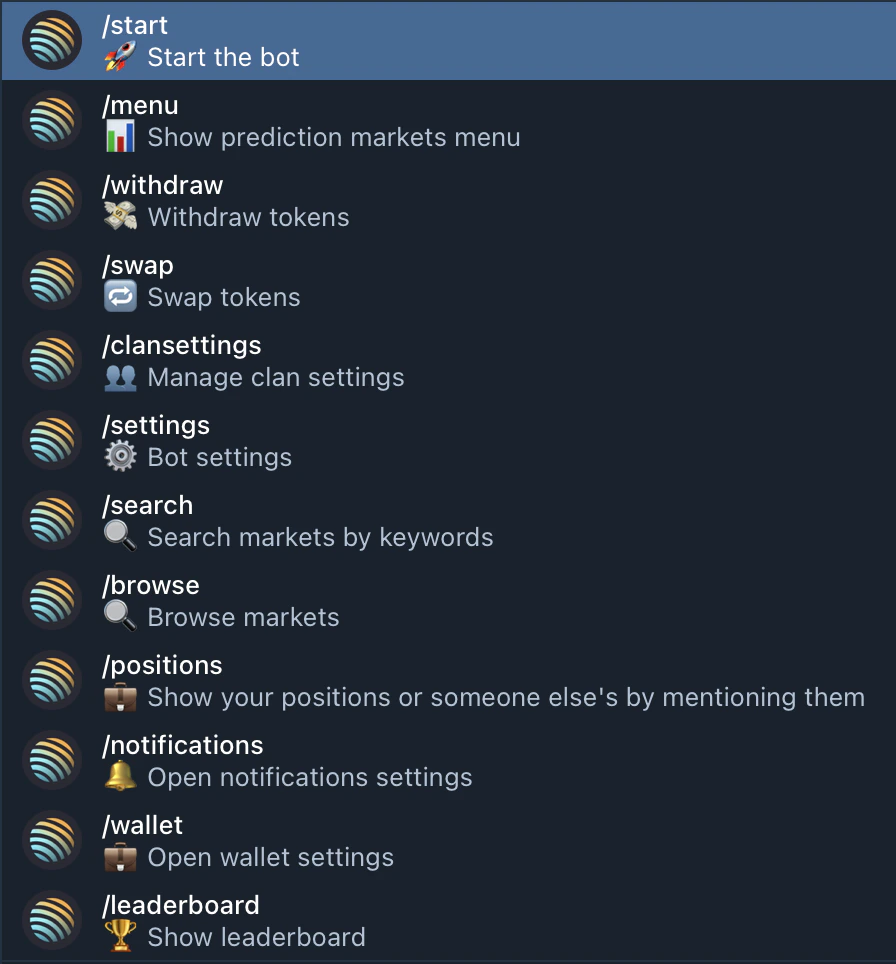
To access commands, tap the menu icon (☰) next to the message input or type `/`
 ### `/start`
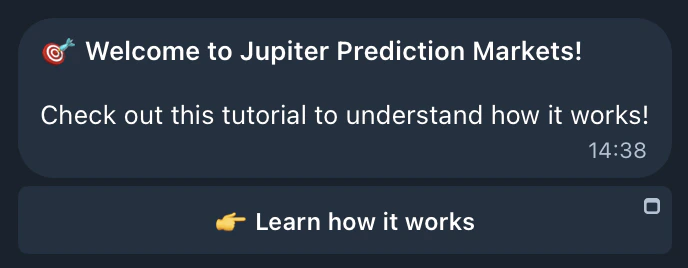
Creates your wallet on first use and shows the onboarding flow. After that, it opens the main menu — same as `/menu`.
### `/start`
Creates your wallet on first use and shows the onboarding flow. After that, it opens the main menu — same as `/menu`.
 ### `/menu`
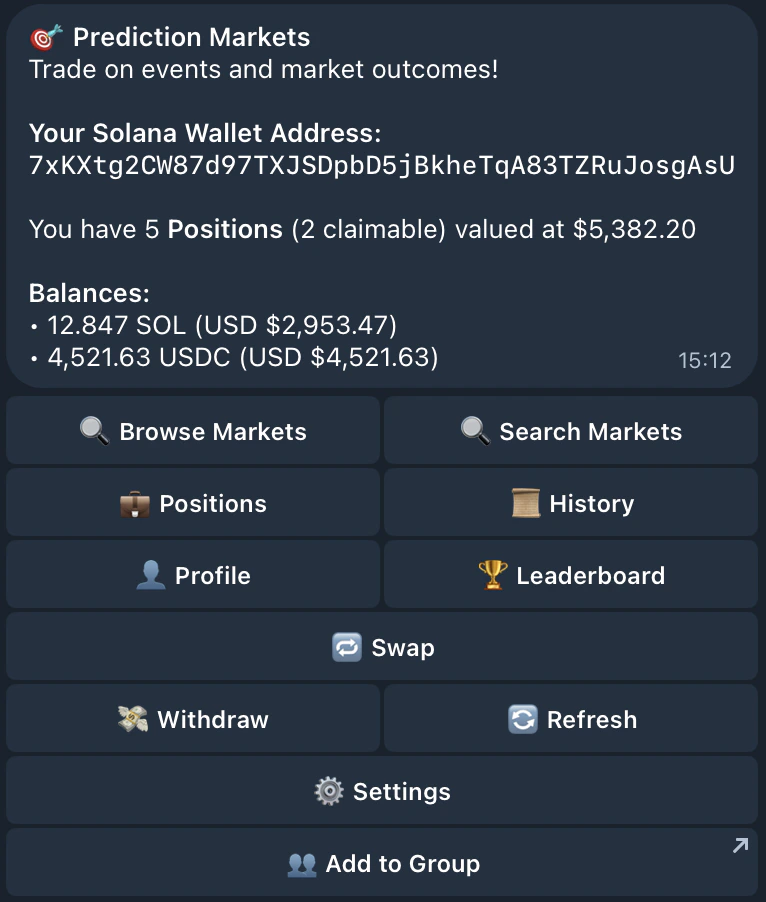
Opens the main menu — your central hub. From here you can access Browse, Positions, History, Profile, Copy Trade, Referrals, Settings, and more.
### `/menu`
Opens the main menu — your central hub. From here you can access Browse, Positions, History, Profile, Copy Trade, Referrals, Settings, and more.
 ### `/settings`
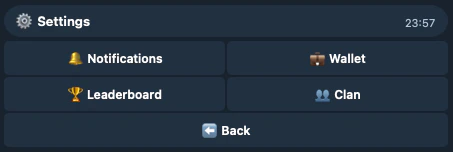
Opens the settings hub with four tabs. Each tab also has a shortcut command to jump straight to it.
### `/settings`
Opens the settings hub with four tabs. Each tab also has a shortcut command to jump straight to it.
 #### Leaderboard settings
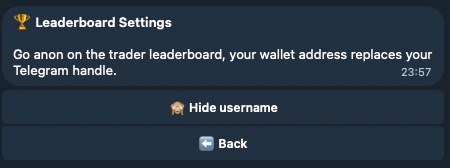
Go anon on the trader leaderboard. When enabled, your wallet address replaces your Telegram handle.
#### Leaderboard settings
Go anon on the trader leaderboard. When enabled, your wallet address replaces your Telegram handle.
 #### `/notifications`
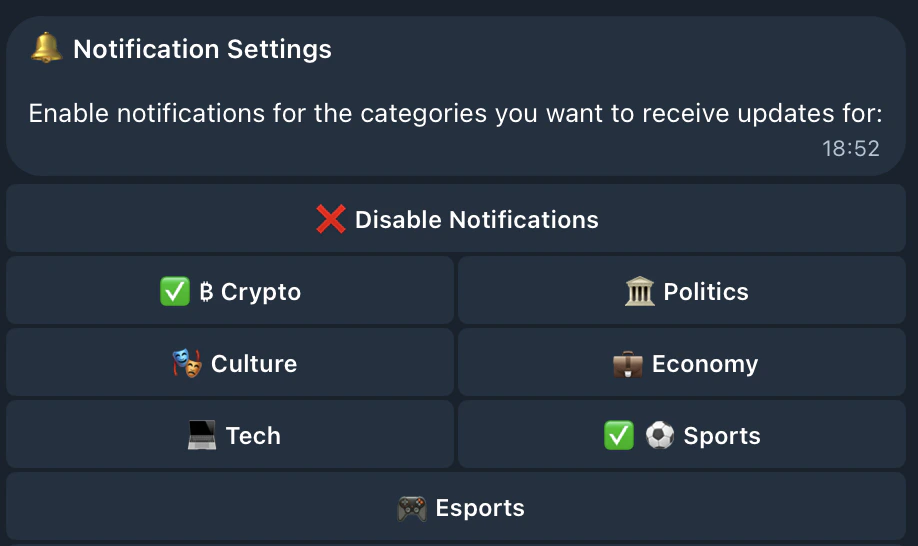
Toggle notifications on/off globally, or enable/disable specific categories (Crypto, Sports, Politics, etc.).
#### `/notifications`
Toggle notifications on/off globally, or enable/disable specific categories (Crypto, Sports, Politics, etc.).
 #### `/wallet`
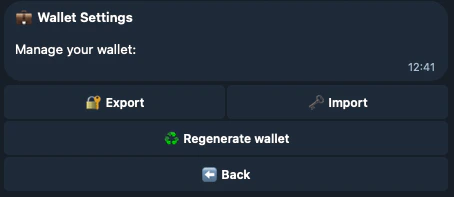
View your Solana address, export or import private keys, or regenerate your wallet.
#### `/wallet`
View your Solana address, export or import private keys, or regenerate your wallet.
 #### `/clansettings`
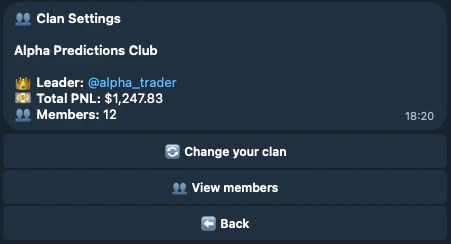
View your clan's info (name, leader, total PnL, member count) and manage membership. If you're not in a clan yet, shows available groups to join.
#### `/clansettings`
View your clan's info (name, leader, total PnL, member count) and manage membership. If you're not in a clan yet, shows available groups to join.
 ### `/browse`
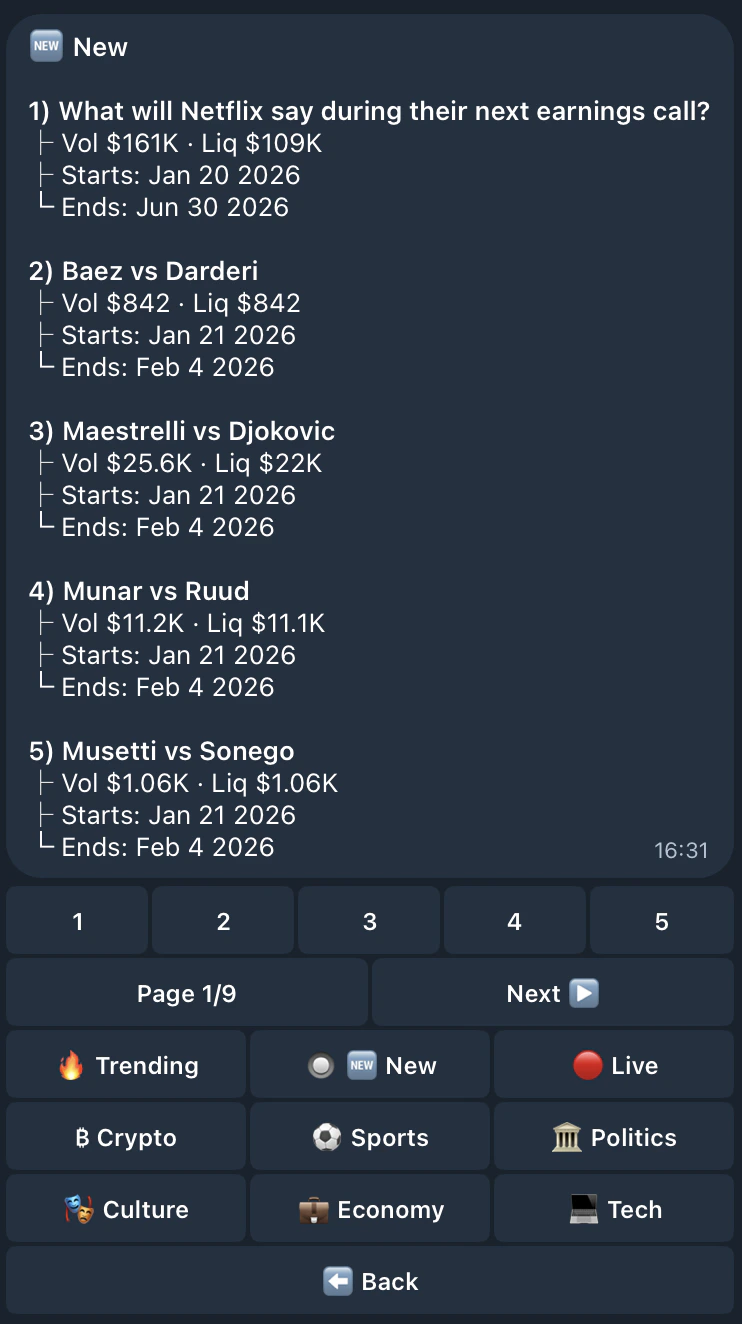
Explore prediction markets by category (Crypto, Sports, Politics, etc.). Tap a category to see available events with volume, liquidity, and closing dates.
### `/browse`
Explore prediction markets by category (Crypto, Sports, Politics, etc.). Tap a category to see available events with volume, liquidity, and closing dates.
 ### `/search`
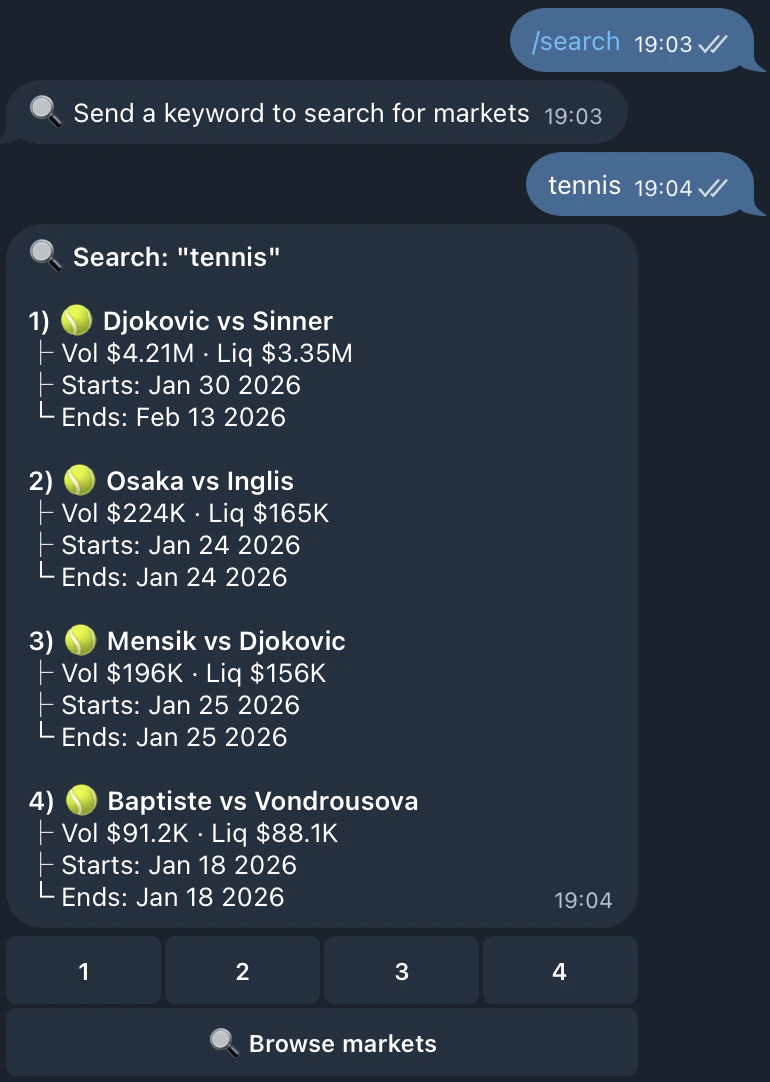
Search markets by keyword. Type `/search` followed by your term (e.g. `/search tennis`). Results show matching events with volume, liquidity, and dates.
### `/search`
Search markets by keyword. Type `/search` followed by your term (e.g. `/search tennis`). Results show matching events with volume, liquidity, and dates.
 ### `/positions`
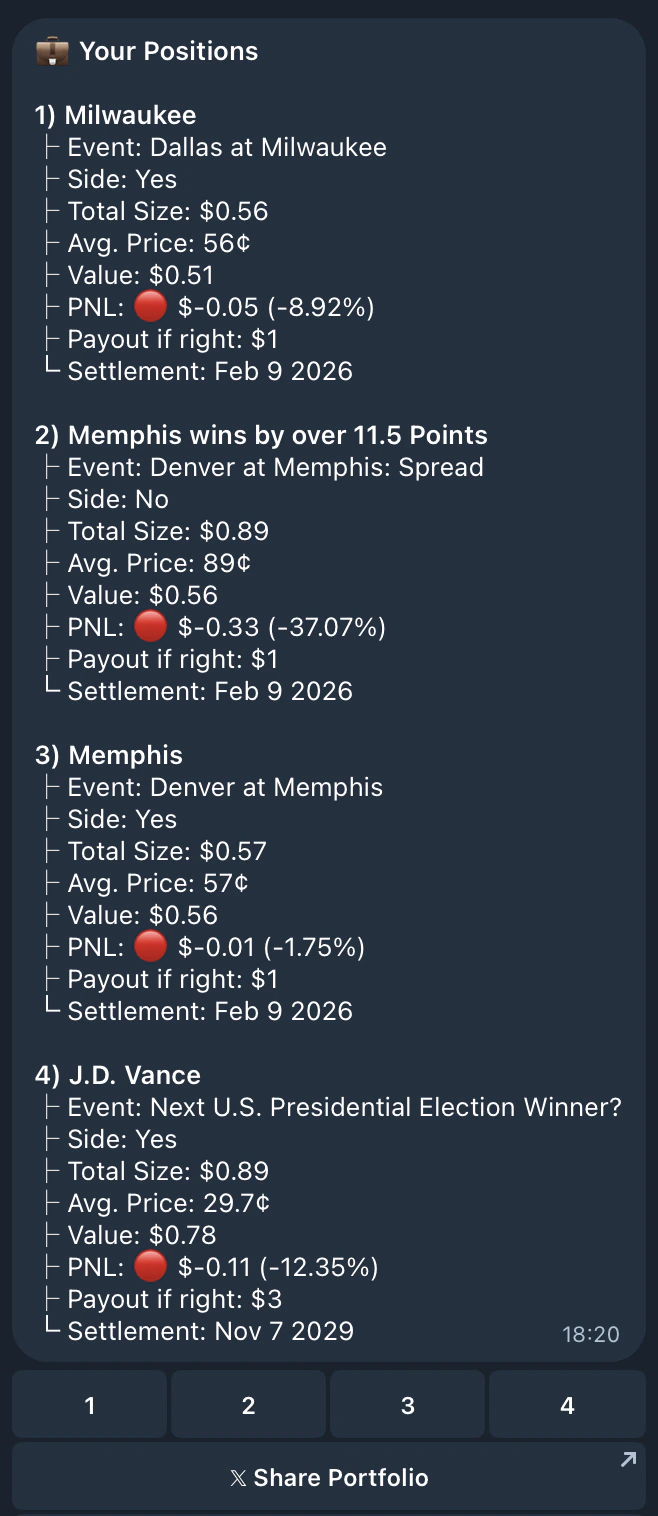
View your active positions with current value, PnL, and payout info. Select a position to claim winnings, close it, or view the event.
### `/positions`
View your active positions with current value, PnL, and payout info. Select a position to claim winnings, close it, or view the event.
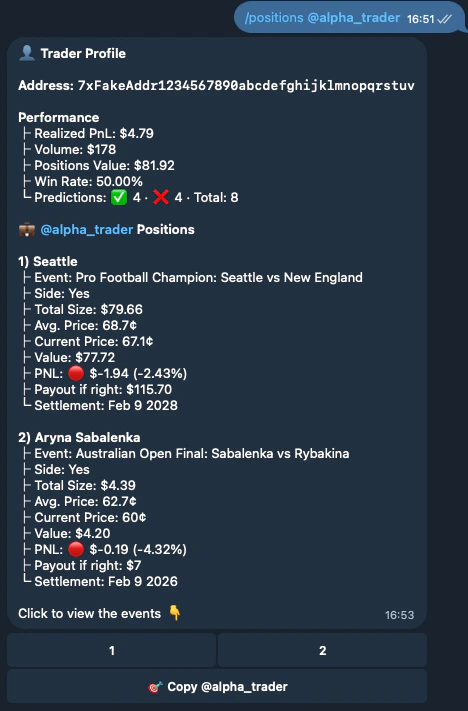
 In group chats, you can view anyone's positions: `/positions @username`. This also shows their Trader Profile (PnL, win rate, volume) and a **🎯 Copy Trade** button.
 ### `/copytrade`
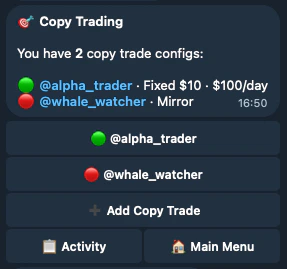
Open the Copy Trade dashboard. Automatically mirror predictions from traders you follow with your own size and risk settings.
From the dashboard you can add new configs, pause/resume existing ones, and view activity logs showing every executed, skipped, or failed prediction.
Copy Trade requires clan membership. See the [Copy Trading guide](/user-docs/trade/prediction-bot/copy-trading) for the full setup walkthrough.
### `/copytrade`
Open the Copy Trade dashboard. Automatically mirror predictions from traders you follow with your own size and risk settings.
From the dashboard you can add new configs, pause/resume existing ones, and view activity logs showing every executed, skipped, or failed prediction.
Copy Trade requires clan membership. See the [Copy Trading guide](/user-docs/trade/prediction-bot/copy-trading) for the full setup walkthrough.
 ### `/leaderboard`
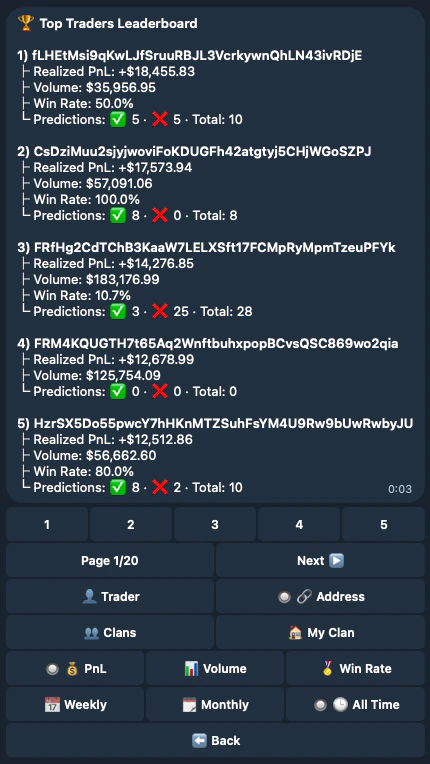
View three rankings:
* **Users** — all Jupiter prediction activity across every user, shown by Telegram handle or wallet address (if anon is enabled in Leaderboard Settings)
* **Clans** — clans ranked against each other
* **Internal clan** — members ranked within your own clan
Filter by PnL, Volume, or Win Rate across different time periods (24h, 7d, 30d, All time).
### `/leaderboard`
View three rankings:
* **Users** — all Jupiter prediction activity across every user, shown by Telegram handle or wallet address (if anon is enabled in Leaderboard Settings)
* **Clans** — clans ranked against each other
* **Internal clan** — members ranked within your own clan
Filter by PnL, Volume, or Win Rate across different time periods (24h, 7d, 30d, All time).
 ### `/withdraw`
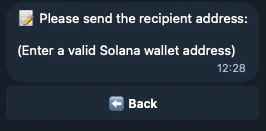
Withdraw tokens from your bot wallet to any Solana address:
1. Enter the recipient Solana address
### `/withdraw`
Withdraw tokens from your bot wallet to any Solana address:
1. Enter the recipient Solana address
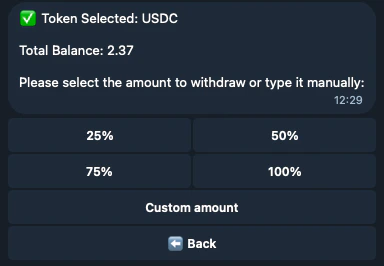
 2. Select token (SOL, USDC, or JupUSD) and choose amount (25%, 50%, 75%, 100%, or custom)
 3. Confirm the withdrawal
### `/swap`
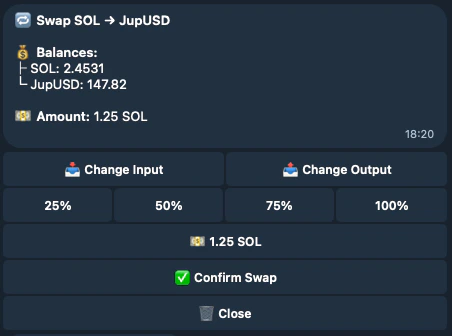
Swap between tokens directly in the bot. Select input/output tokens, pick an amount (25%–100% presets or custom), and confirm.
3. Confirm the withdrawal
### `/swap`
Swap between tokens directly in the bot. Select input/output tokens, pick an amount (25%–100% presets or custom), and confirm.
 ### `/help`
Links to the documentation site.
### `/help`
Links to the documentation site.