> ## Documentation Index
> Fetch the complete documentation index at: https://docs.jup.ag/llms.txt
> Use this file to discover all available pages before exploring further.
# Introduction
This documentation will help you get started with trading on prediction markets directly from Telegram.
## Key Features
Participate in prediction markets
Monitor your performance
New events and resolved markets
Compete and share your winnings
## Getting Started
### Step 1: Join the Waitlist
The bot is currently in early access. Message [@JupiterCometPredictBot](https://t.me/JupiterCometPredictBot) to join the waitlist — you'll be notified as soon as you're granted access.
### Step 2: Start the Bot
1. [Launch the bot](https://t.me/JupiterCometPredictBot)
2. Click **Start** or send `/start` to begin
3. The bot will automatically create a Solana wallet for you
### Step 3: Wallet Setup
The bot automatically creates a Solana wallet for you when you first start using the bot in a **private chat**.
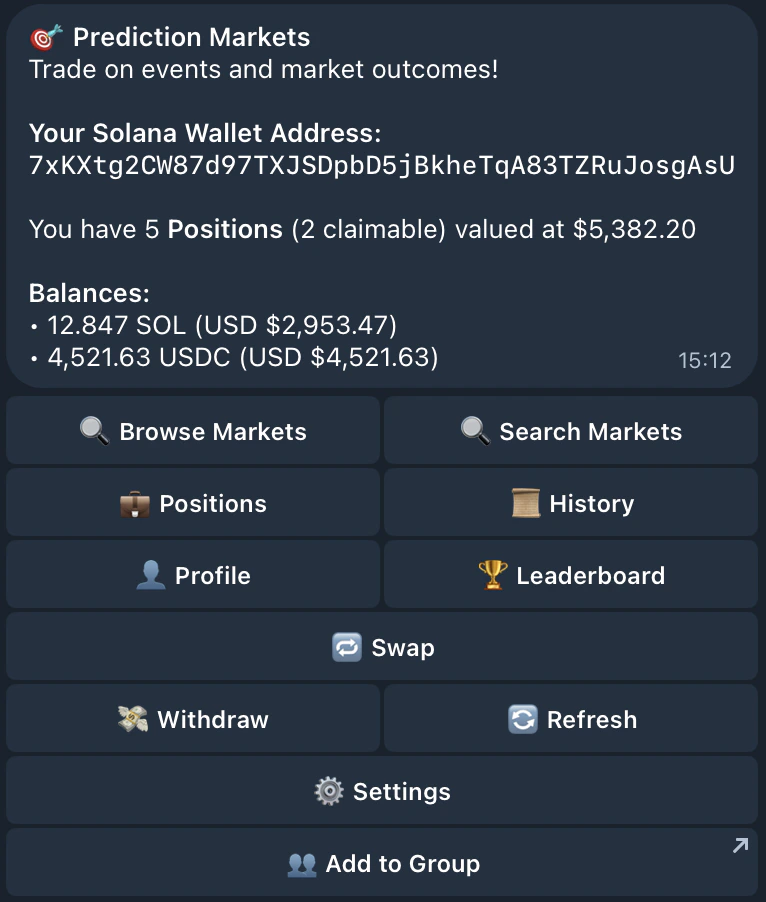
Your wallet address is displayed in the main menu. You can:
* **Copy the address** to receive funds from exchanges or other wallets
* **View your balances** directly in the menu
* **Export your private key** if you want to use the wallet elsewhere
* **Import your wallet** in case you prefer
### Step 4: Fund Your Wallet
Before you can place predictions, fund your wallet with JupUSD:
1. **Copy your wallet address** from the main menu
2. **Send JupUSD** to this address
Transaction fees are covered — no SOL needed.
### Step 5: Browse Events
1. From the main menu you can browse or search:
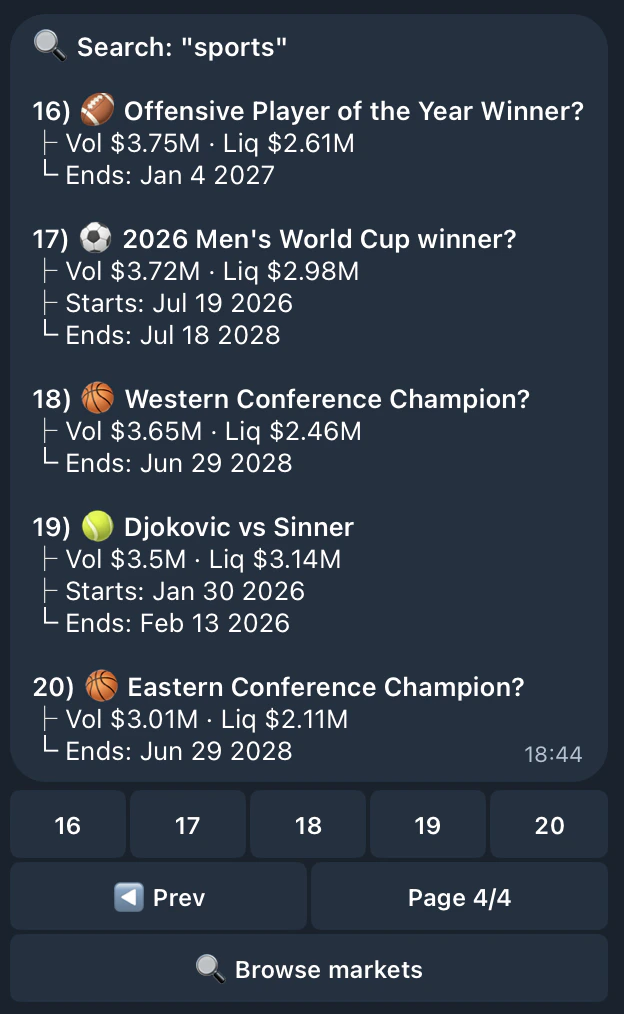
 2. At any moment you can search by keywords:
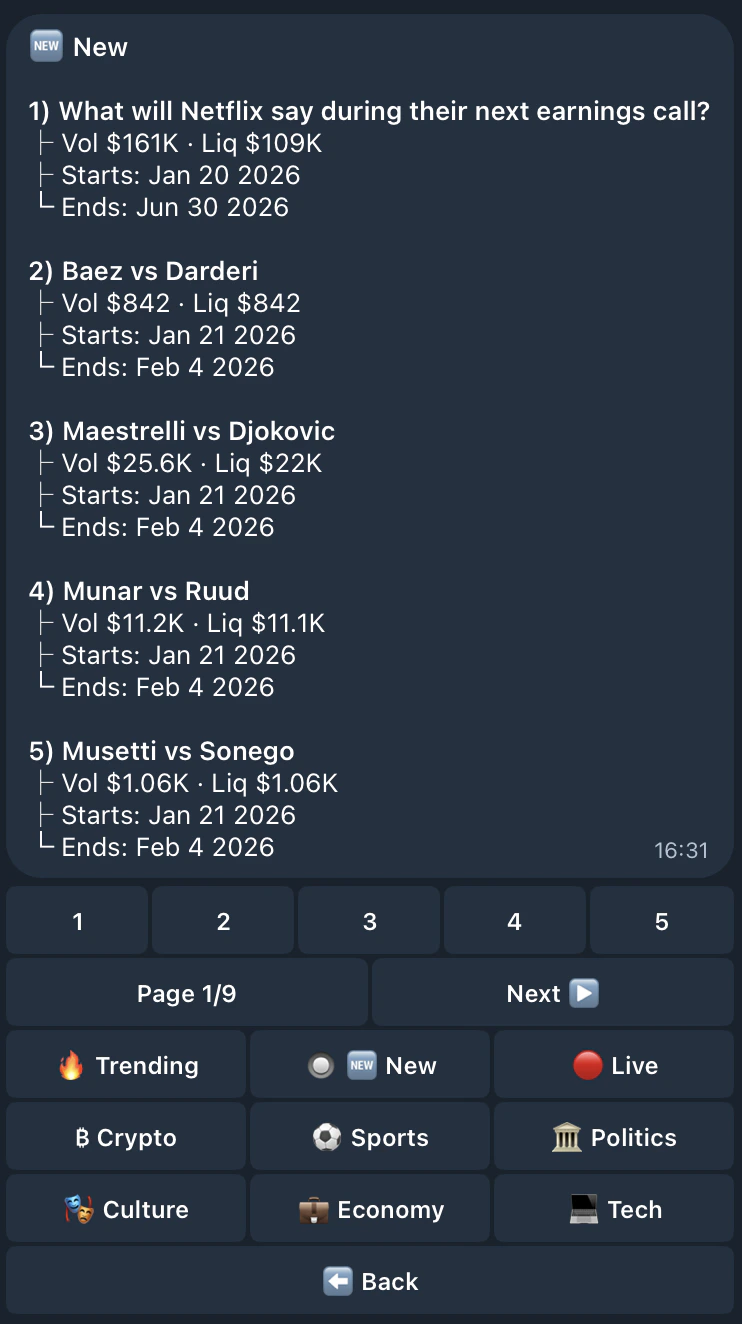
 3. When browsing, narrow down events by category or other filters, select an event to view available markets:
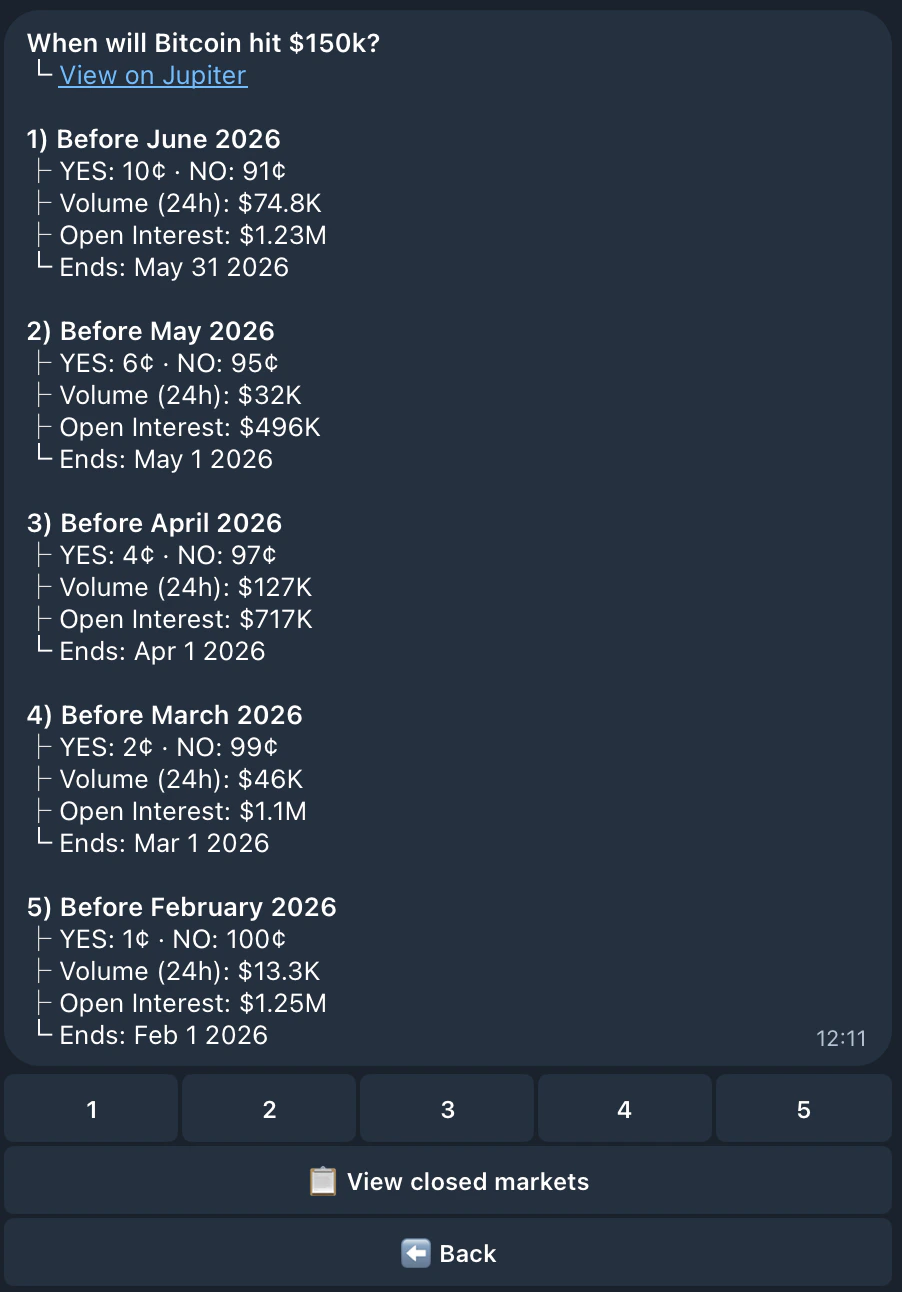
 4. Choose a market to see details and place a prediction
 ### Step 6: Place Your First Prediction
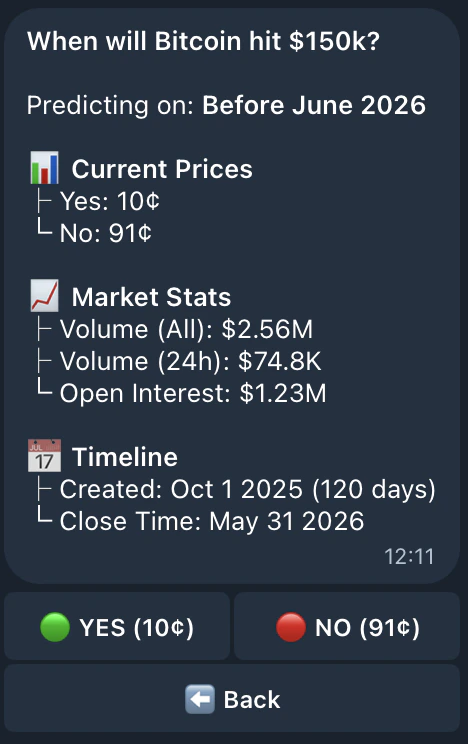
1. Select a market from the event
2. Choose **YES** or **NO** as the outcome
### Step 6: Place Your First Prediction
1. Select a market from the event
2. Choose **YES** or **NO** as the outcome
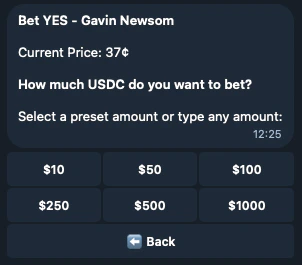
 3. Select your prediction amount (preset or custom by typing it)
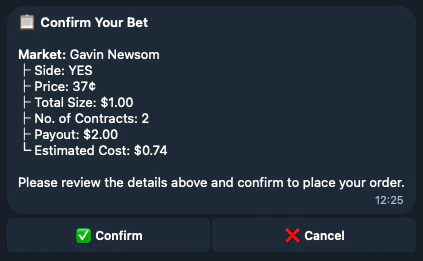
 4. Confirm your prediction
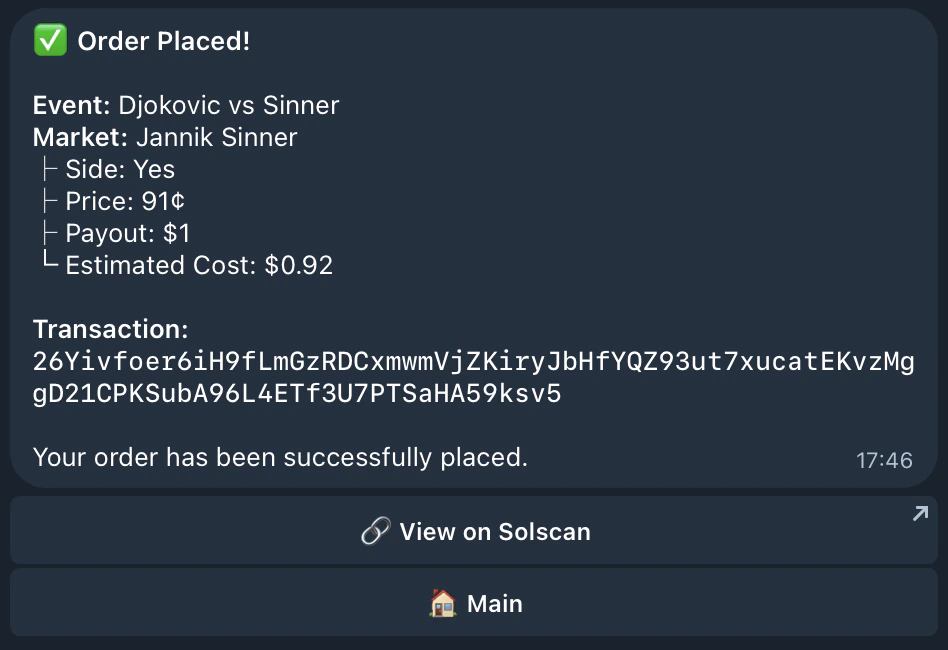
 5. Your order will be placed!
 ### Step 7: Track Your Positions
1. Go back to the main menu
2. Click **💼 Positions** to view all your active positions
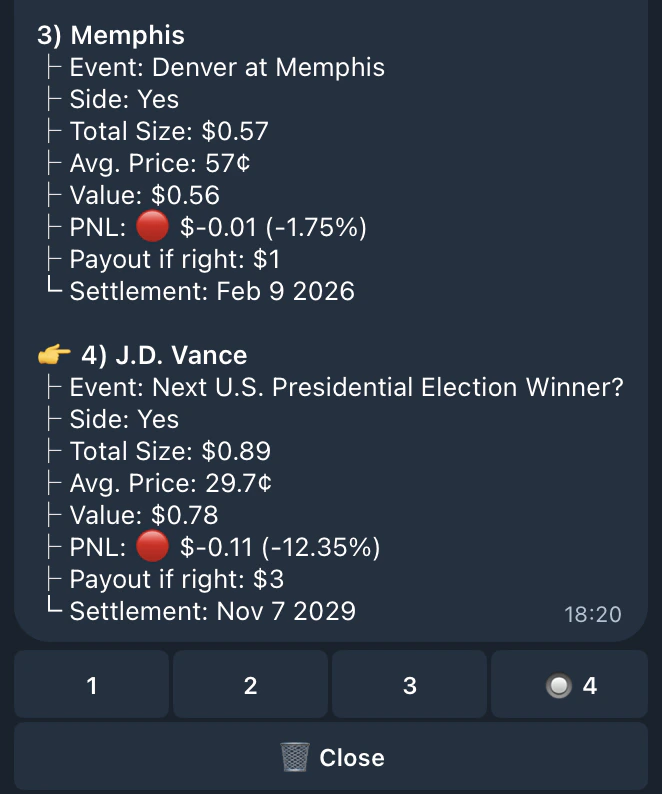
3. Monitor your positions and wait for markets to settle
### Step 7: Track Your Positions
1. Go back to the main menu
2. Click **💼 Positions** to view all your active positions
3. Monitor your positions and wait for markets to settle
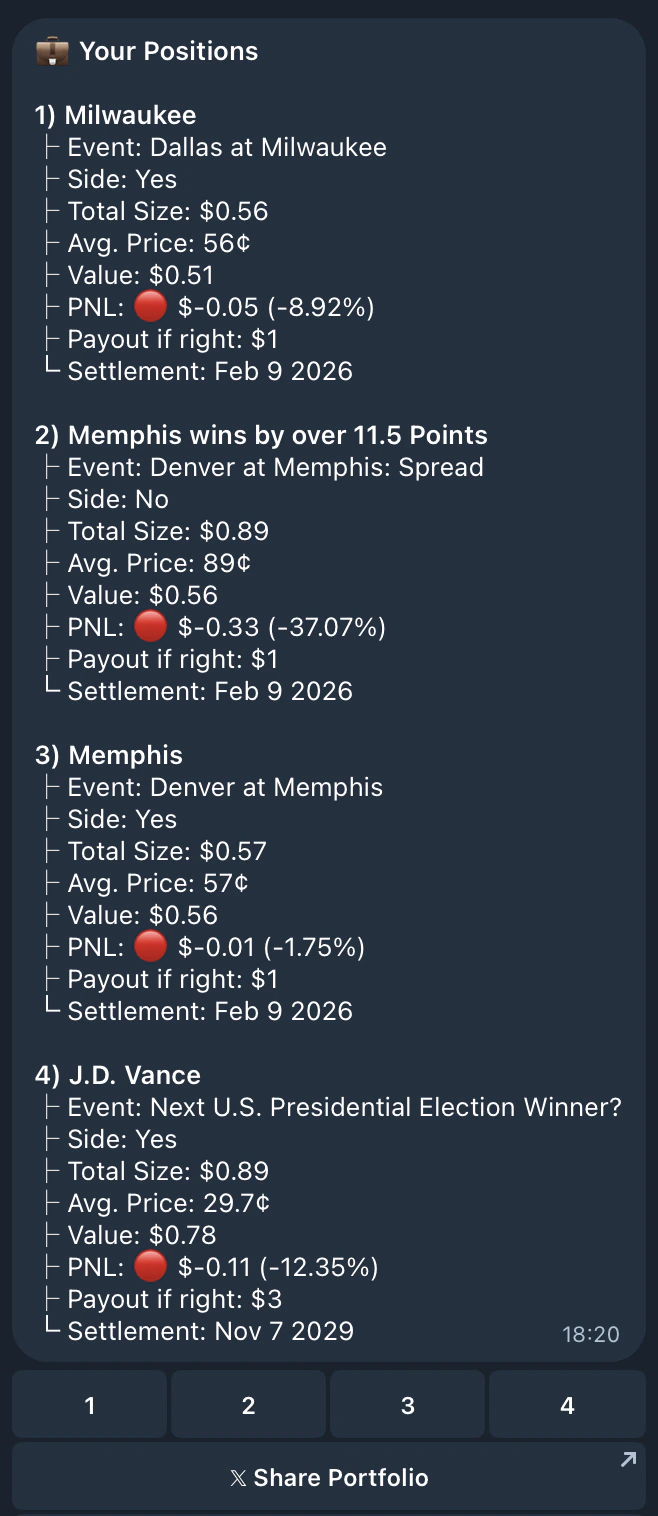 4. Select a position to view details, close it early, or share your portfolio:
 ### Step 8: Join a Clan
Clans let you compete with friends and track your group's performance on the leaderboard.
1. Go to **⚙️ Settings** → **👥 Clan Settings**
If you're not in any group with the bot, you'll see:
### Step 8: Join a Clan
Clans let you compete with friends and track your group's performance on the leaderboard.
1. Go to **⚙️ Settings** → **👥 Clan Settings**
If you're not in any group with the bot, you'll see:
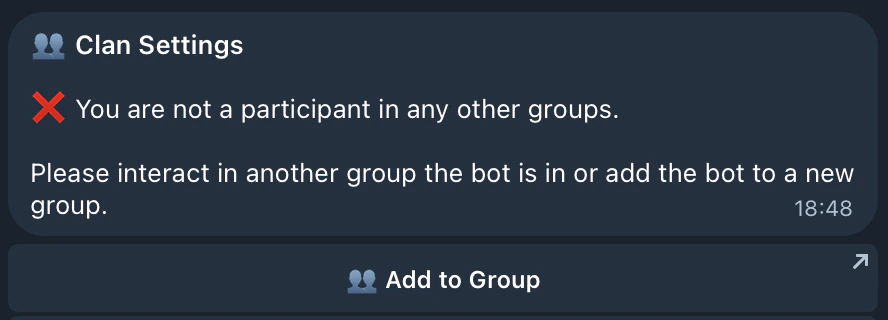 2. Add the bot to a Telegram group to create or join a clan
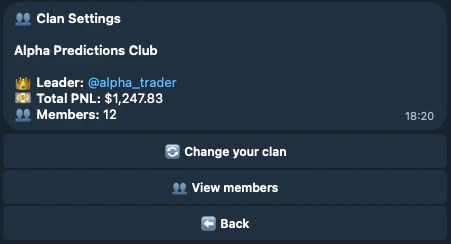
3. Once in a group, you can view your clan's stats and members:
2. Add the bot to a Telegram group to create or join a clan
3. Once in a group, you can view your clan's stats and members:
 4. Check out the **🏆 Leaderboard** to see how you and your clan rank:
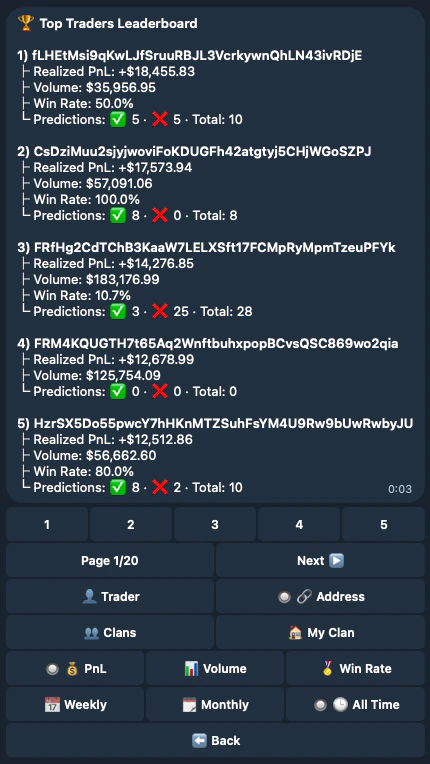 You can filter the leaderboard by:
* **Individual** or **Clans** rankings
* **PnL**, **Volume**, or **Win Rate**
* **Weekly**, **Monthly**, or **All Time** periods
## Security Best Practices
* ✅ **Never share your private key** with anyone
* ✅ **No SOL needed** — transaction fees are covered automatically
* ✅ **Verify addresses** before sending large amounts
* ✅ **Use the export feature** only when necessary
* ✅ **Keep your Telegram account secure** (2FA enabled)
## Next Steps
Now that you've learned the basics, explore these guides:
## Need Help?
* Check out our [FAQs](/user-docs/trade/prediction-bot/getting-started/faqs)
* Join our [Community on Discord](https://discord.gg/jup)
You can filter the leaderboard by:
* **Individual** or **Clans** rankings
* **PnL**, **Volume**, or **Win Rate**
* **Weekly**, **Monthly**, or **All Time** periods
## Security Best Practices
* ✅ **Never share your private key** with anyone
* ✅ **No SOL needed** — transaction fees are covered automatically
* ✅ **Verify addresses** before sending large amounts
* ✅ **Use the export feature** only when necessary
* ✅ **Keep your Telegram account secure** (2FA enabled)
## Next Steps
Now that you've learned the basics, explore these guides:
## Need Help?
* Check out our [FAQs](/user-docs/trade/prediction-bot/getting-started/faqs)
* Join our [Community on Discord](https://discord.gg/jup)