> ## Documentation Index
> Fetch the complete documentation index at: https://docs.jup.ag/llms.txt
> Use this file to discover all available pages before exploring further.
# Commands
## Scanning Tokens
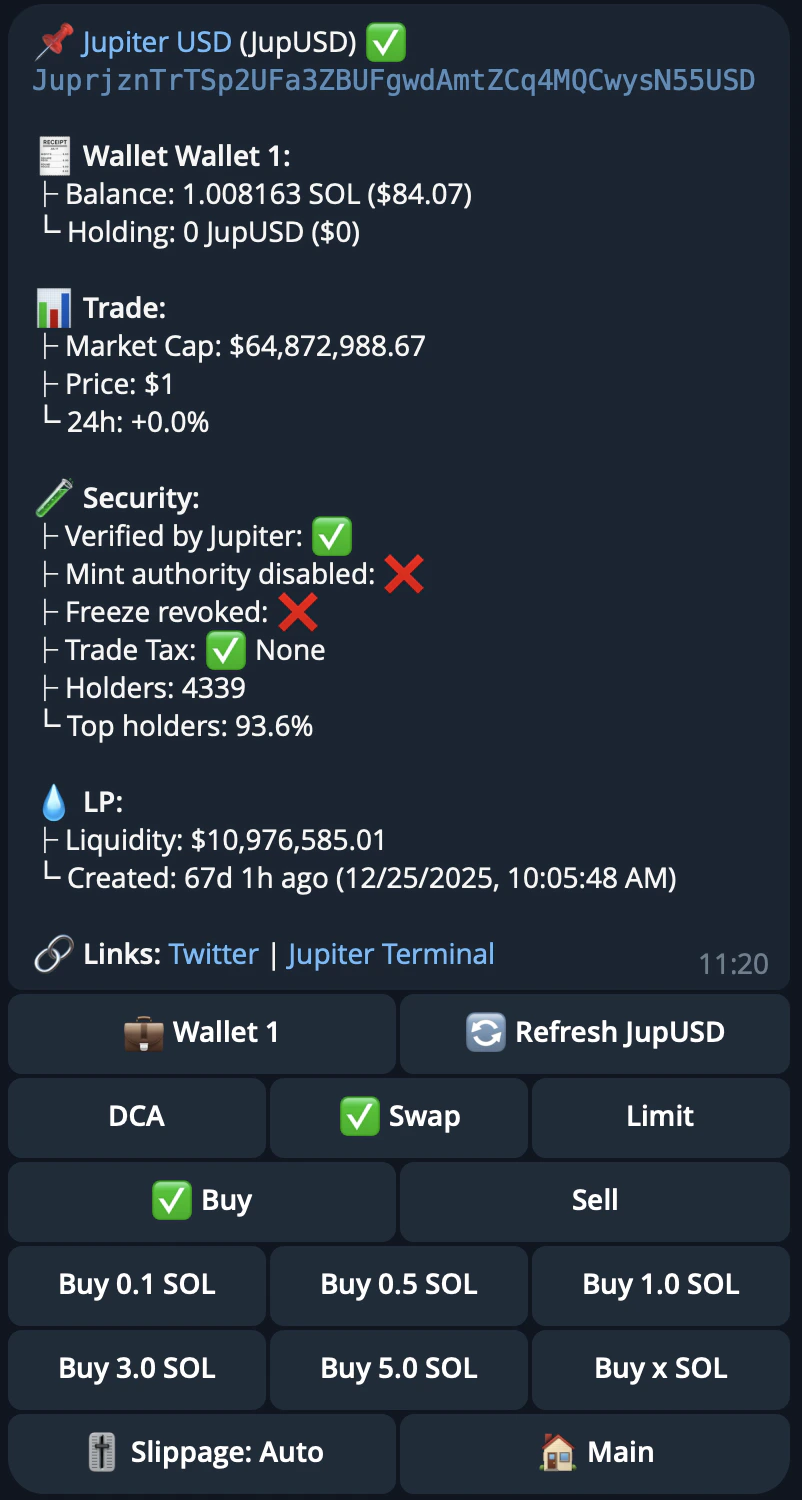
Send a token mint address or symbol to scan any token. The bot will display:
* **Token info** and trading options (Swap, Limit Order, DCA)
* **Your holdings** if you own the token
* **Market data**: market cap, current price, and 24h price change
* **Security indicators**:
* Jupiter verification (verified or not verified)
* Suspicious flag (flagged or clean)
* Mint authority disabled (safe or still enabled)
* Freeze authority revoked (safe or still active)
* Trade tax (none or percentage)
* Holder info: total holders, top holders percentage, dev balance percentage, dev migrations
* LP info: liquidity (with low-liquidity warning), launchpad name, first liquidity pool creation time
* Social links
* **Liquidity information**:
* Token liquidity, with a warning for low liquidity tokens
* The first liquidity pool's creation time
 ## Command List
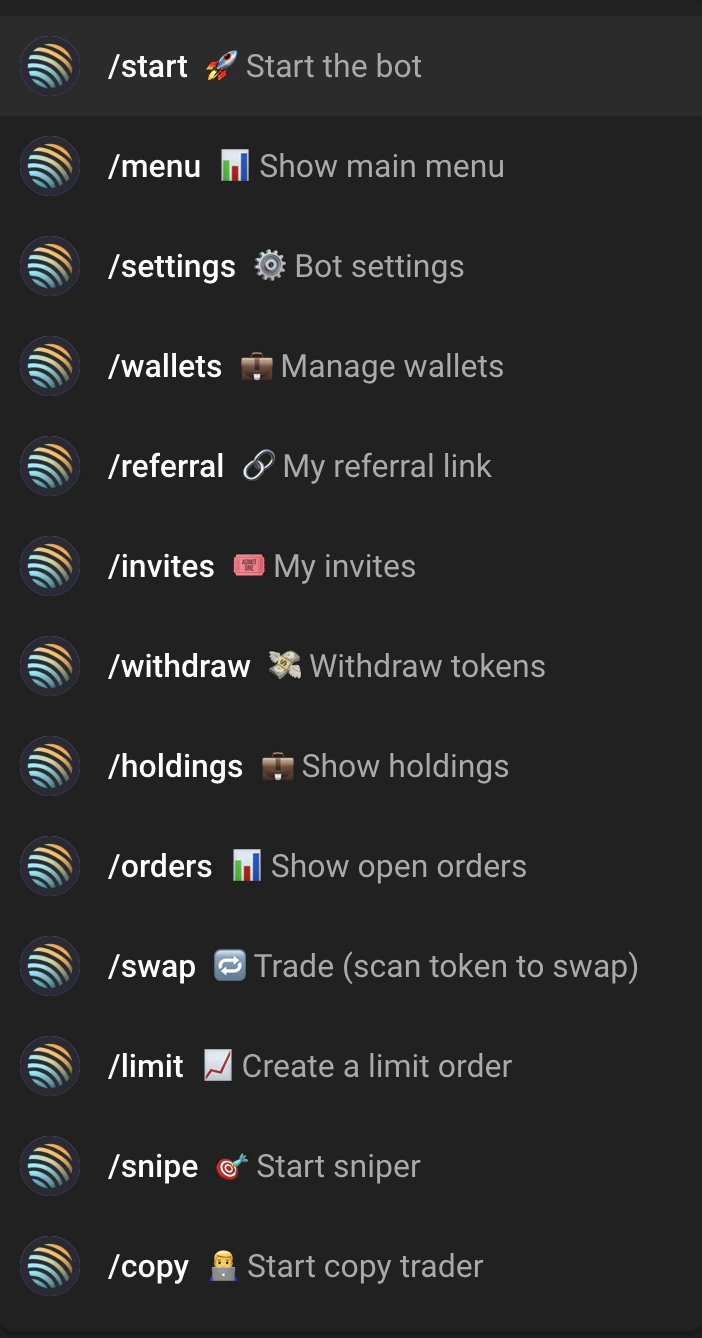
To access commands, tap the menu icon next to the message input or type `/`.
## Command List
To access commands, tap the menu icon next to the message input or type `/`.
 ### `/start`
Creates your wallet on first use, or shows the main menu if you already have one.
* **`/start `** -- join via an invite code from an existing user.
### `/menu`
Shows the main menu with your wallet address, balances (top 5 tokens by USD value), and navigation buttons.
### `/swap`
Scan a token to open its trading options. Send a token mint address or symbol, then choose how to trade:
* **Swap** — buy or sell instantly. Pick buy or sell and enter a preset or custom amount.
* **Limit Order** — set a target price. Buy orders execute when the price drops to your target; sell orders execute when it rises. Expiry is configurable: presets 10m, 1h, 1d, 3d, 7d, 30d, or custom (default 7 days).
* **DCA** (Dollar Cost Averaging) — automate recurring purchases at set intervals.
### `/holdings`
View your portfolio with PnL tracking. Shows token balances, USD values, unrealized/realized/total PnL per token, and a wallet-level PnL summary. See [Portfolio & Holdings](/user-docs/trade/trading-bot/holdings).
### `/orders`
View and manage active DCA and limit orders. Cancel orders directly from this screen. See [Active Orders](/user-docs/trade/trading-bot/orders).
### `/snipe`
Open the Sniper Mode dashboard. Configure automatic buys for new token launches. See [Sniper Mode](/user-docs/trade/trading-bot/sniper-mode).
### `/copy`
Open the Copy Trader dashboard. Mirror trades from other wallets automatically. See [Copy Trading](/user-docs/trade/trading-bot/copy-trading).
### `/wallets`
Manage your wallets -- create, rename, archive, delete, import, or export. See [Wallet Management](/user-docs/trade/trading-bot/wallet).
### `/referral`
View your referral dashboard with earnings, stats, and claim options. See [Referrals & Invites](/user-docs/trade/trading-bot/referral).
### `/invites`
View and manage your invite codes. Share your invite link with others.
### `/settings`
Open the bot settings menu.
### `/help`
View the documentation.
### `/withdraw`
Withdraw tokens to an external wallet.
1. Select a wallet if you have multiple wallets.
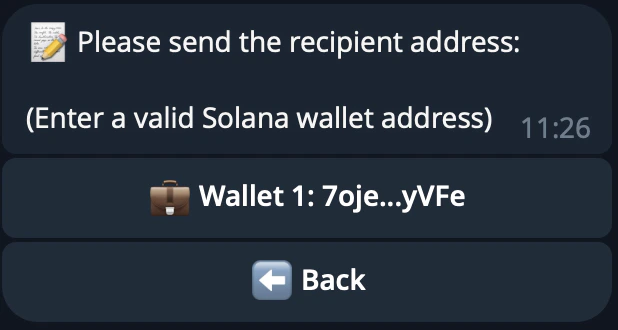
2. Enter the recipient Solana address.
### `/start`
Creates your wallet on first use, or shows the main menu if you already have one.
* **`/start `** -- join via an invite code from an existing user.
### `/menu`
Shows the main menu with your wallet address, balances (top 5 tokens by USD value), and navigation buttons.
### `/swap`
Scan a token to open its trading options. Send a token mint address or symbol, then choose how to trade:
* **Swap** — buy or sell instantly. Pick buy or sell and enter a preset or custom amount.
* **Limit Order** — set a target price. Buy orders execute when the price drops to your target; sell orders execute when it rises. Expiry is configurable: presets 10m, 1h, 1d, 3d, 7d, 30d, or custom (default 7 days).
* **DCA** (Dollar Cost Averaging) — automate recurring purchases at set intervals.
### `/holdings`
View your portfolio with PnL tracking. Shows token balances, USD values, unrealized/realized/total PnL per token, and a wallet-level PnL summary. See [Portfolio & Holdings](/user-docs/trade/trading-bot/holdings).
### `/orders`
View and manage active DCA and limit orders. Cancel orders directly from this screen. See [Active Orders](/user-docs/trade/trading-bot/orders).
### `/snipe`
Open the Sniper Mode dashboard. Configure automatic buys for new token launches. See [Sniper Mode](/user-docs/trade/trading-bot/sniper-mode).
### `/copy`
Open the Copy Trader dashboard. Mirror trades from other wallets automatically. See [Copy Trading](/user-docs/trade/trading-bot/copy-trading).
### `/wallets`
Manage your wallets -- create, rename, archive, delete, import, or export. See [Wallet Management](/user-docs/trade/trading-bot/wallet).
### `/referral`
View your referral dashboard with earnings, stats, and claim options. See [Referrals & Invites](/user-docs/trade/trading-bot/referral).
### `/invites`
View and manage your invite codes. Share your invite link with others.
### `/settings`
Open the bot settings menu.
### `/help`
View the documentation.
### `/withdraw`
Withdraw tokens to an external wallet.
1. Select a wallet if you have multiple wallets.
2. Enter the recipient Solana address.
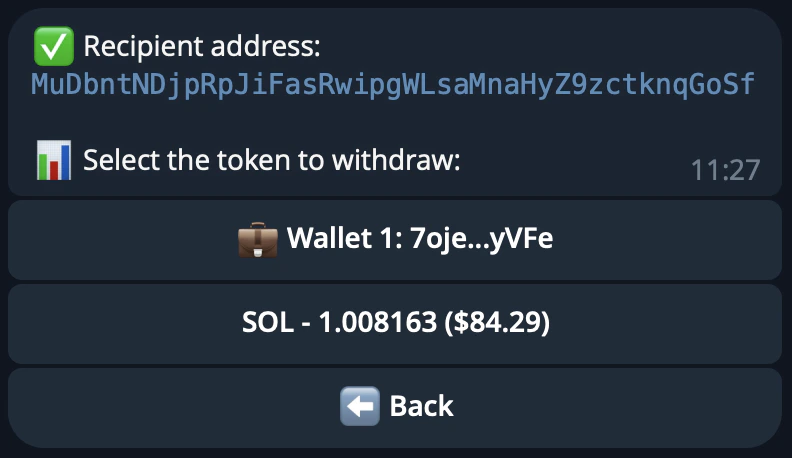
 3. Select a token and choose an amount (preset percentages or custom).
 4. Confirm the withdrawal.