> ## Documentation Index
> Fetch the complete documentation index at: https://docs.jup.ag/llms.txt
> Use this file to discover all available pages before exploring further.
# Introduction
This documentation will help you get started with trading tokens on Solana directly from Telegram.
## Key Features
Swap tokens with the best rates
Set buy/sell orders at your target price with configurable expiry
Place automated recurring orders
Track unrealized, realized, and total PnL per token
Earn fees by referring other traders
Create and manage multiple wallets
Mirror trades from any wallet automatically
Snipe new token launches and liquidity pools
## Getting Started
### Step 1: Start the Bot
1. [Launch the bot](https://t.me/JupiterCometTradingBot)
2. Click **Start** or send `/start` to begin
3. The bot will automatically create a Solana wallet for you
### Step 2: Wallet Setup
The bot automatically creates your first Solana wallet. You can create additional wallets later via the `/wallets` command.
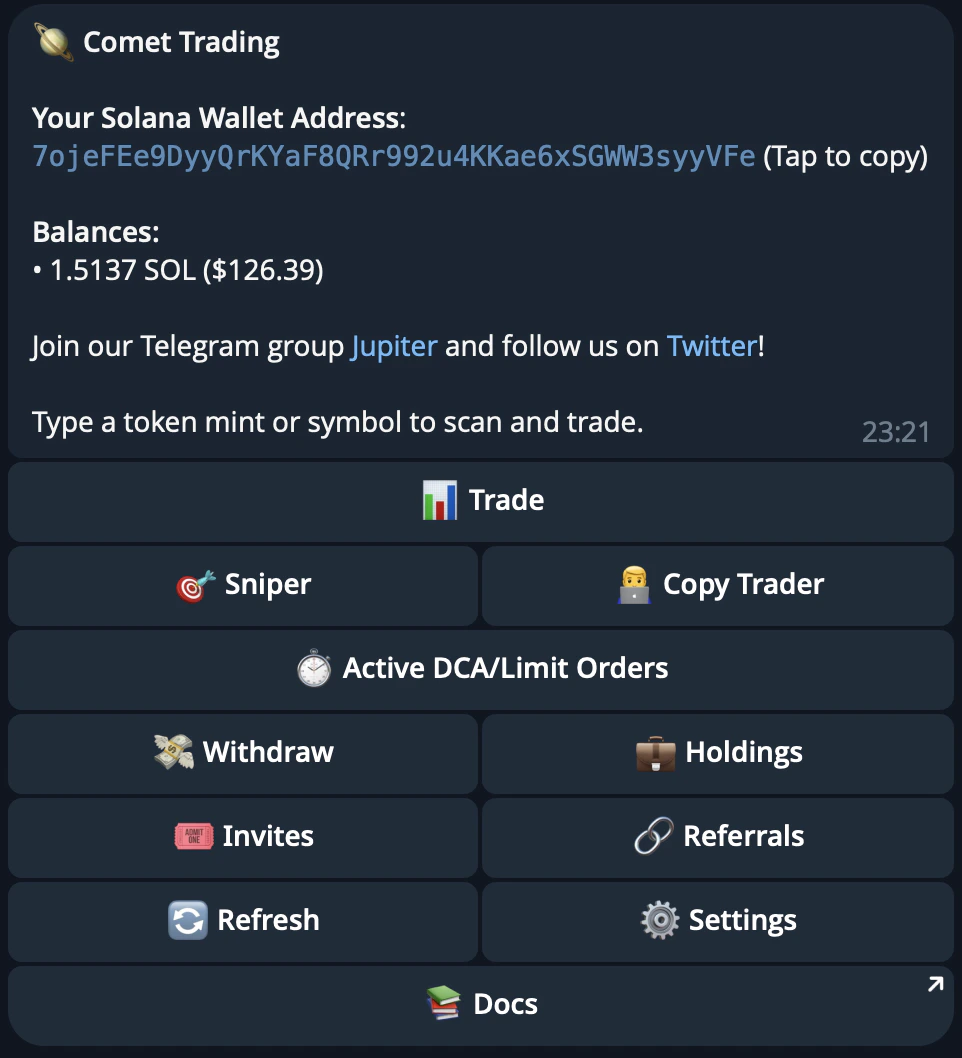
Your wallet address is displayed in the main menu. You can:
* **Copy the address** to receive funds from exchanges or other wallets
* **Export your private key** if you want to use the wallet elsewhere
* **Import your wallet** in case you prefer
### Step 3: Fund Your Wallet
Before you can start trading, you need to fund your wallet with SOL:
1. **Copy your wallet address** from the main menu
2. **Send SOL** to this address from an exchange or another wallet
**Important**: Keep some SOL in your wallet for transaction fees.
### Step 4: Scan a Token
1. From the main menu, you'll see the trading interface:
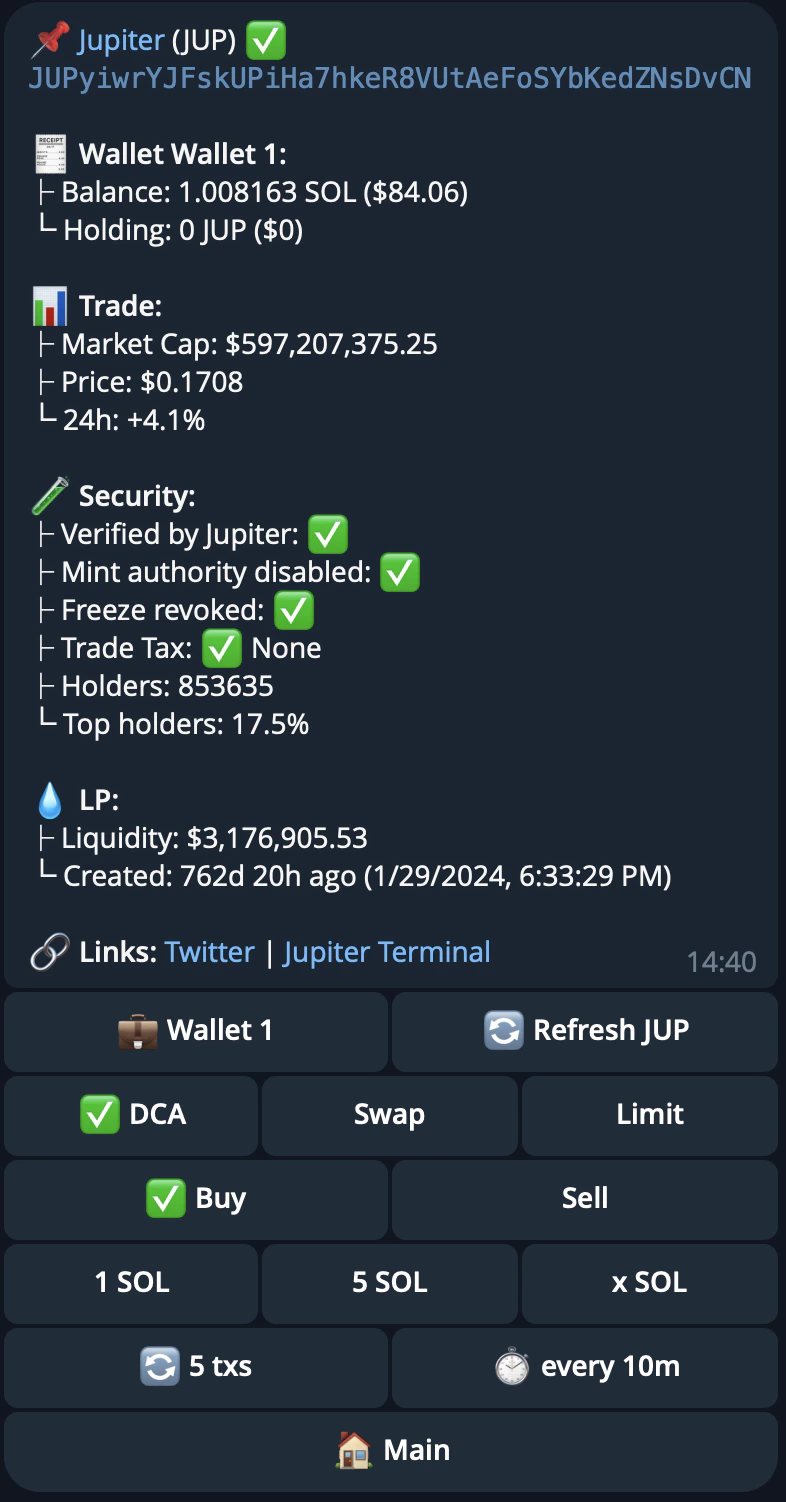
 2. Send a token mint address or symbol to scan it:
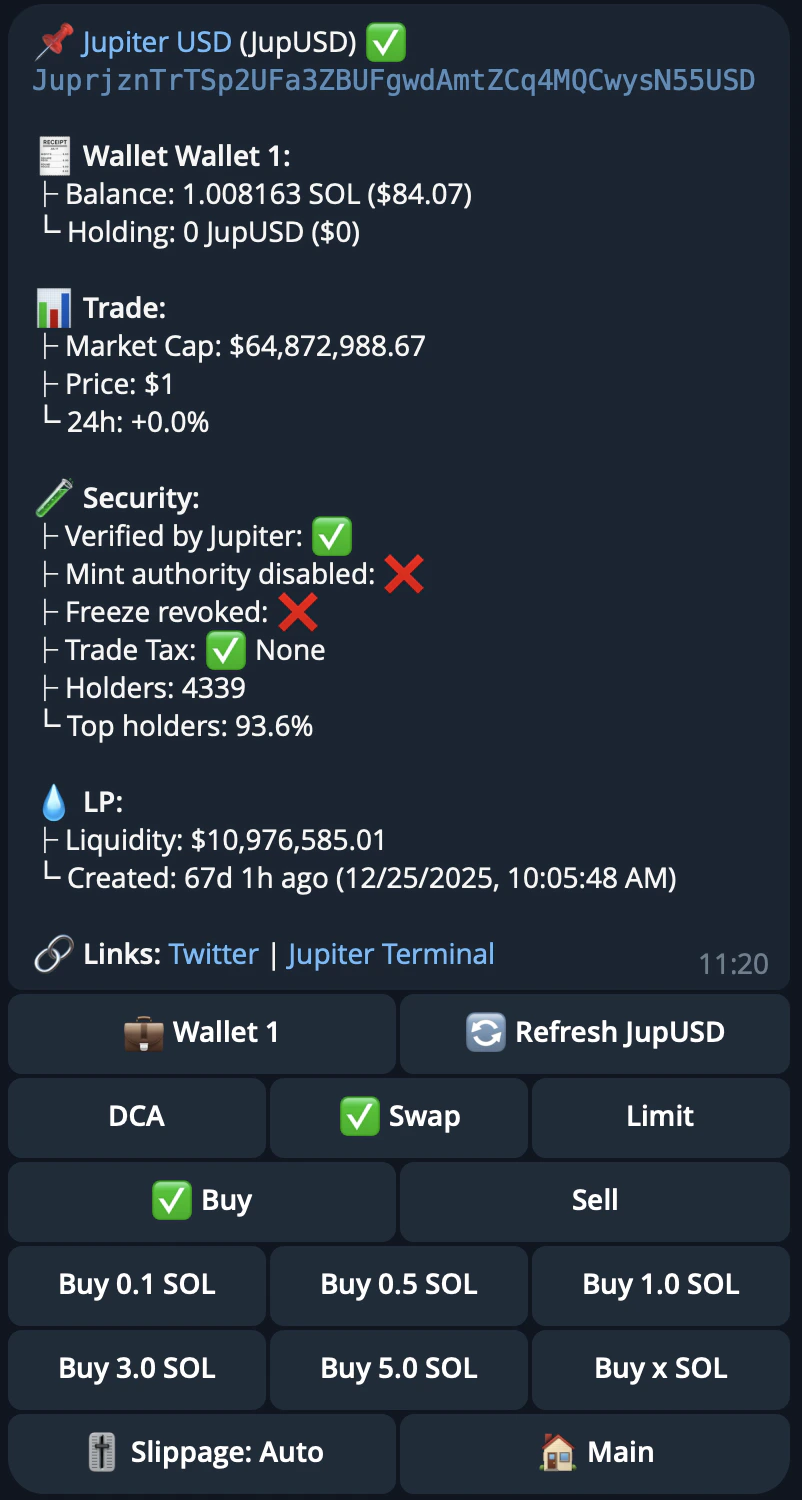 The scan card shows live market data (market cap, current price, 24h change), security indicators (Jupiter verification, suspicious token flags, mint/freeze authority status, trade tax), holder information, and LP details — liquidity, launchpad, and the first liquidity pool's creation time.
### Step 5: Choose Your Trading Action
After scanning a token, you can choose from multiple trading options:
#### Swap - Quick Buy/Sell
The scan card shows live market data (market cap, current price, 24h change), security indicators (Jupiter verification, suspicious token flags, mint/freeze authority status, trade tax), holder information, and LP details — liquidity, launchpad, and the first liquidity pool's creation time.
### Step 5: Choose Your Trading Action
After scanning a token, you can choose from multiple trading options:
#### Swap - Quick Buy/Sell
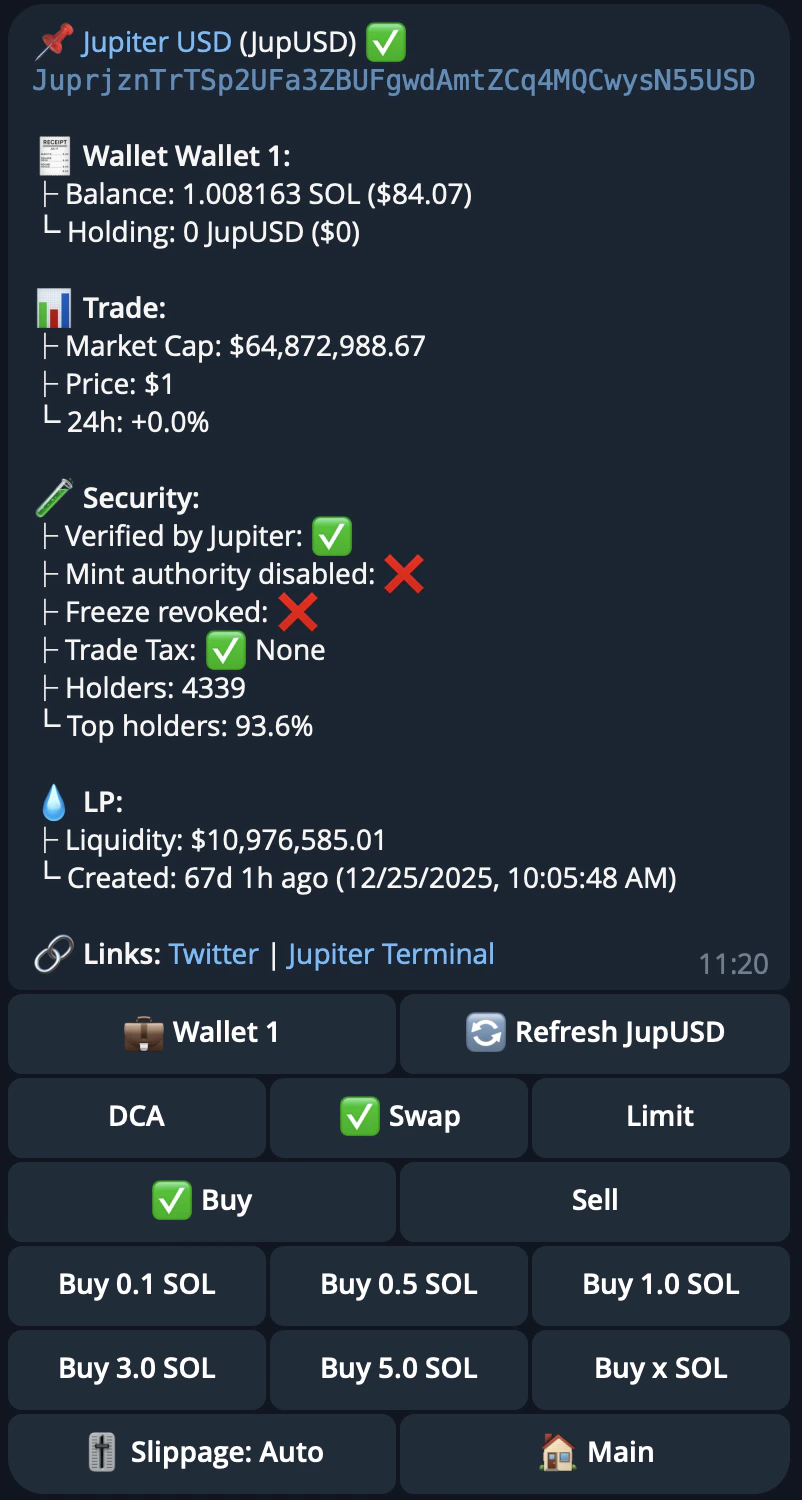 * **Quick Buy**: Instantly purchase tokens with SOL
* **Quick Sell**: Sell your tokens for SOL
* Select preset amounts or enter a custom amount
#### Limit Orders - Set Target Prices
* **Quick Buy**: Instantly purchase tokens with SOL
* **Quick Sell**: Sell your tokens for SOL
* Select preset amounts or enter a custom amount
#### Limit Orders - Set Target Prices
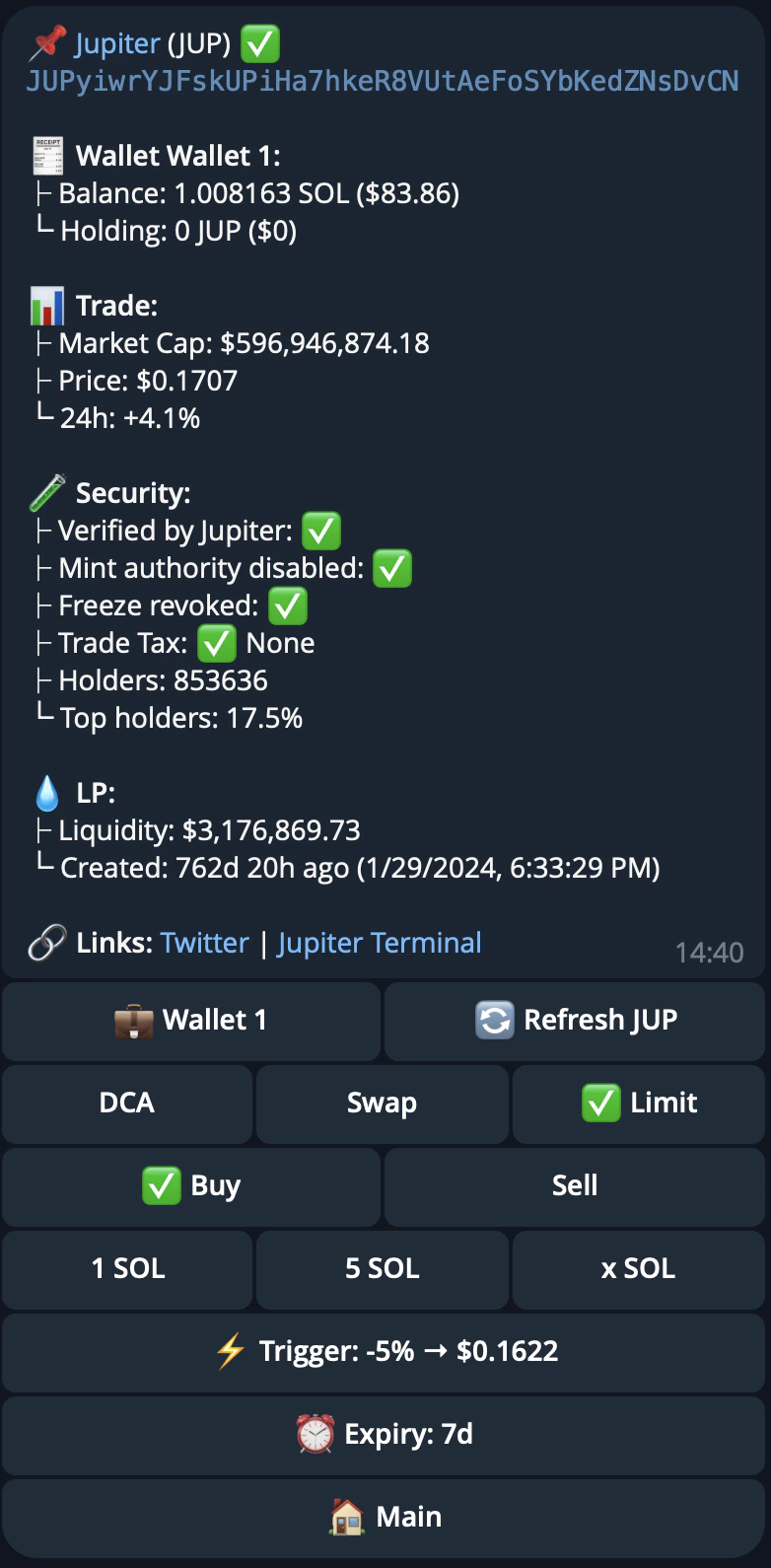 * Set buy orders when price drops to your target
* Set sell orders when price reaches your target
* Set target prices as specific amounts or percentage changes (+/- %)
* Orders execute automatically when triggered
* Set an expiry for your orders (default: 7 days, or choose from presets like 10m, 1h, 1d, 3d, 30d)
#### DCA - Dollar Cost Averaging
* Set buy orders when price drops to your target
* Set sell orders when price reaches your target
* Set target prices as specific amounts or percentage changes (+/- %)
* Orders execute automatically when triggered
* Set an expiry for your orders (default: 7 days, or choose from presets like 10m, 1h, 1d, 3d, 30d)
#### DCA - Dollar Cost Averaging
 * Automate recurring purchases at set intervals
* Spread your investment over time
* Reduce impact of price volatility
### Step 6: View Your Holdings
1. Go back to the main menu
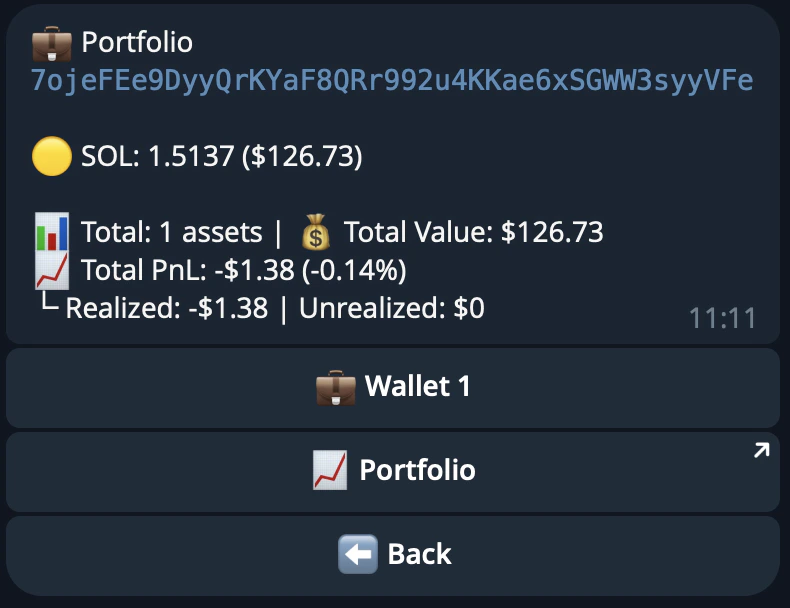
2. View your portfolio with PnL tracking — see unrealized, realized, and total PnL per token, aligned with jup.ag
* Automate recurring purchases at set intervals
* Spread your investment over time
* Reduce impact of price volatility
### Step 6: View Your Holdings
1. Go back to the main menu
2. View your portfolio with PnL tracking — see unrealized, realized, and total PnL per token, aligned with jup.ag
 ## Security Best Practices
* ✅ **Never share your private key** with anyone
* ✅ **Keep some SOL** in your wallet for transaction fees
* ✅ **Verify addresses** before sending large amounts
* ✅ **Use the export feature** only when necessary
* ✅ **Keep your Telegram account secure** (2FA enabled)
## Next Steps
Now that you've learned the basics, explore these guides:
Manage multiple wallets and private keys
Track your PnL
Manage DCA and limit orders
Earn referral fees
Mirror trades from other wallets
Auto-buy new token launches
Learn all available commands
Common questions and answers
## Need Help?
* Check out our [FAQs](/user-docs/trade/trading-bot/getting-started/faqs)
* Join our [Community on Discord](https://discord.gg/jup)
## Security Best Practices
* ✅ **Never share your private key** with anyone
* ✅ **Keep some SOL** in your wallet for transaction fees
* ✅ **Verify addresses** before sending large amounts
* ✅ **Use the export feature** only when necessary
* ✅ **Keep your Telegram account secure** (2FA enabled)
## Next Steps
Now that you've learned the basics, explore these guides:
Manage multiple wallets and private keys
Track your PnL
Manage DCA and limit orders
Earn referral fees
Mirror trades from other wallets
Auto-buy new token launches
Learn all available commands
Common questions and answers
## Need Help?
* Check out our [FAQs](/user-docs/trade/trading-bot/getting-started/faqs)
* Join our [Community on Discord](https://discord.gg/jup)