> ## Documentation Index
> Fetch the complete documentation index at: https://docs.jup.ag/llms.txt
> Use this file to discover all available pages before exploring further.
# Active Orders
Manage all your open DCA (recurring) and limit (trigger) orders in one place. View statuses, monitor progress, and cancel orders directly from the bot.
## How to Access
Open Active Orders using either method:
* Type `/orders` in the chat
* Tap **Active DCA/Limit Orders** from the main menu
## Active Orders View
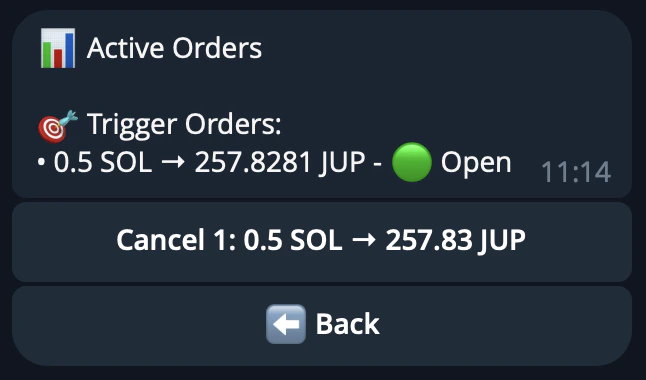 The view is split into two sections: **Recurring Orders** (DCA) and **Trigger Orders** (Limit). Up to five orders are displayed per section, each with a numbered cancel button.
***
## Recurring Orders (DCA)
Each recurring order line shows:
| Field | Description |
| -------------------- | ------------------------------------------------ |
| **Input amount** | Total amount being spent (e.g. 1 SOL) |
| **Output symbol** | Token being purchased |
| **Amount per cycle** | How much is swapped each cycle |
| **Status** | 🟢 Open — still executing, 🔴 Closed — completed |
Only the five most recent recurring orders are shown. Completed orders appear with a red status
indicator.
***
## Trigger Orders (Limit)
Each trigger order line shows:
| Field | Description |
| ----------------- | ----------------------------------------------- |
| **Making amount** | Input token symbol and amount you are selling |
| **Taking amount** | Output token symbol and amount you will receive |
| **Status** | 🟢 Open, 🔴 Executed, or 🔴 Cancelled |
Only the five most recent trigger orders are shown. Executed and cancelled orders appear with a
red status indicator.
***
## Cancelling Orders
1. Find the order you want to cancel in the list.
2. Tap the **numbered button** next to that order (e.g. **1**, **2**, **3**).
3. The bot signs and submits a cancel transaction on-chain.
4. The orders view refreshes automatically once the cancellation is confirmed.
Cancellation is immediate and irreversible. Any unswapped funds from a DCA order are returned to
your wallet.
The view is split into two sections: **Recurring Orders** (DCA) and **Trigger Orders** (Limit). Up to five orders are displayed per section, each with a numbered cancel button.
***
## Recurring Orders (DCA)
Each recurring order line shows:
| Field | Description |
| -------------------- | ------------------------------------------------ |
| **Input amount** | Total amount being spent (e.g. 1 SOL) |
| **Output symbol** | Token being purchased |
| **Amount per cycle** | How much is swapped each cycle |
| **Status** | 🟢 Open — still executing, 🔴 Closed — completed |
Only the five most recent recurring orders are shown. Completed orders appear with a red status
indicator.
***
## Trigger Orders (Limit)
Each trigger order line shows:
| Field | Description |
| ----------------- | ----------------------------------------------- |
| **Making amount** | Input token symbol and amount you are selling |
| **Taking amount** | Output token symbol and amount you will receive |
| **Status** | 🟢 Open, 🔴 Executed, or 🔴 Cancelled |
Only the five most recent trigger orders are shown. Executed and cancelled orders appear with a
red status indicator.
***
## Cancelling Orders
1. Find the order you want to cancel in the list.
2. Tap the **numbered button** next to that order (e.g. **1**, **2**, **3**).
3. The bot signs and submits a cancel transaction on-chain.
4. The orders view refreshes automatically once the cancellation is confirmed.
Cancellation is immediate and irreversible. Any unswapped funds from a DCA order are returned to
your wallet.