

Key Features
Token Swaps
Swap tokens with the best rates
Limit Orders
Set buy/sell orders at your target price with configurable expiry
DCA Strategy
Place automated recurring orders
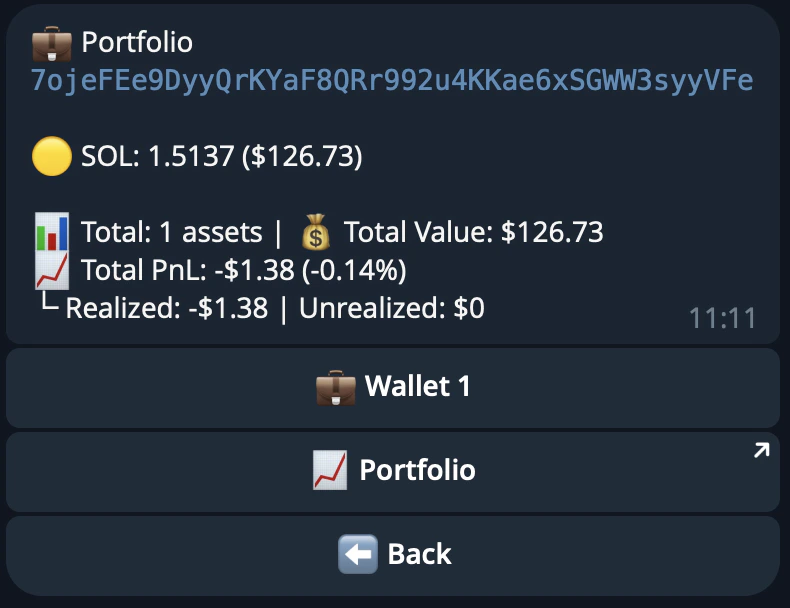
Portfolio & PnL
Track unrealized, realized, and total PnL per token
Referrals
Earn fees by referring other traders
Multi-Wallet
Create and manage multiple wallets
Copy Trading
Mirror trades from any wallet automatically
Sniper Mode
Snipe new token launches and liquidity pools
Getting Started
Step 1: Start the Bot
- Launch the bot
- Click Start or send
/startto begin - The bot will automatically create a Solana wallet for you
Step 2: Wallet Setup
The bot automatically creates your first Solana wallet. You can create additional wallets later via the/wallets command.
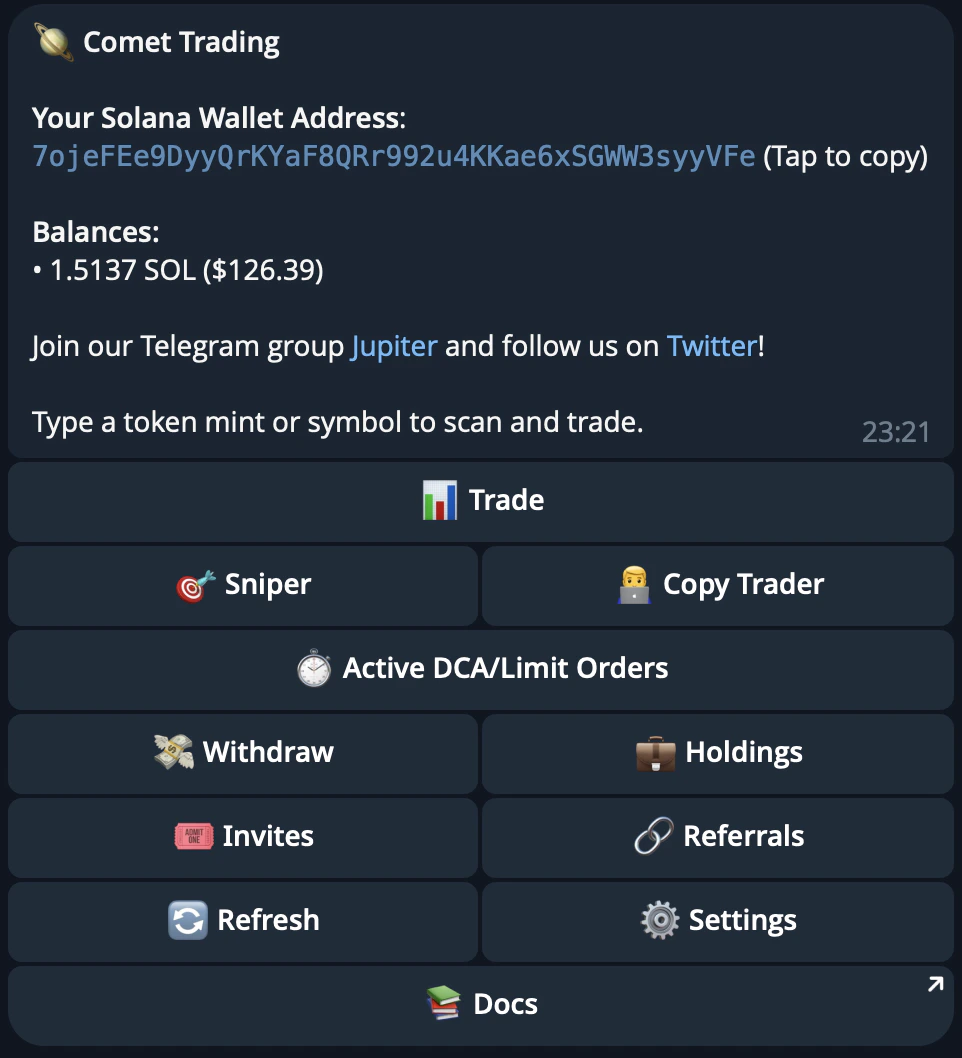
Your wallet address is displayed in the main menu. You can:
- Copy the address to receive funds from exchanges or other wallets
- Export your private key if you want to use the wallet elsewhere
- Import your wallet in case you prefer
Step 3: Fund Your Wallet
Before you can start trading, you need to fund your wallet with SOL:- Copy your wallet address from the main menu
- Send SOL to this address from an exchange or another wallet
Important: Keep some SOL in your wallet for transaction fees.
Step 4: Scan a Token
- From the main menu, you’ll see the trading interface:
- Send a token mint address or symbol to scan it:
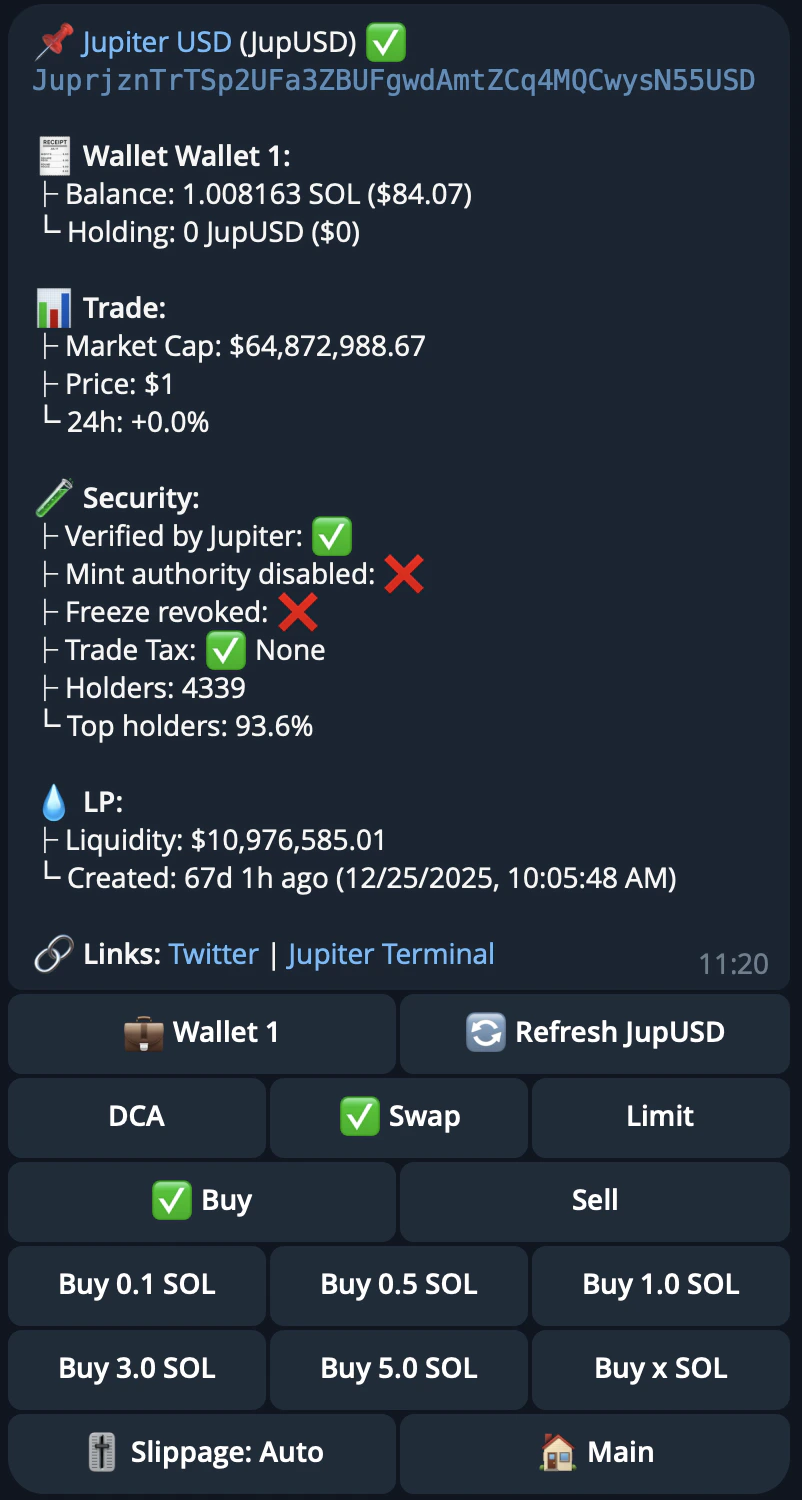
Step 5: Choose Your Trading Action
After scanning a token, you can choose from multiple trading options:Swap - Quick Buy/Sell
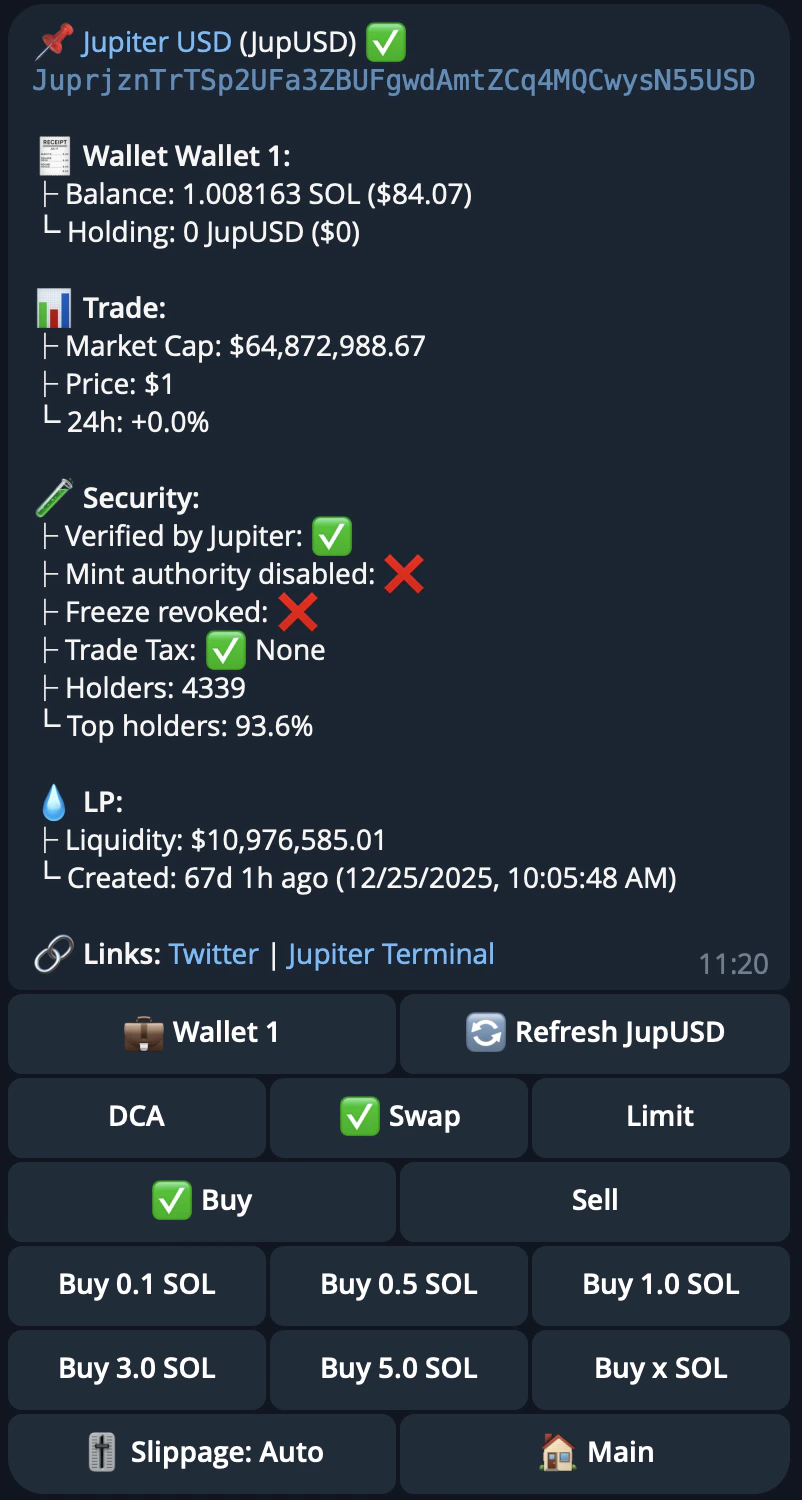
- Quick Buy: Instantly purchase tokens with SOL
- Quick Sell: Sell your tokens for SOL
- Select preset amounts or enter a custom amount
Limit Orders - Set Target Prices
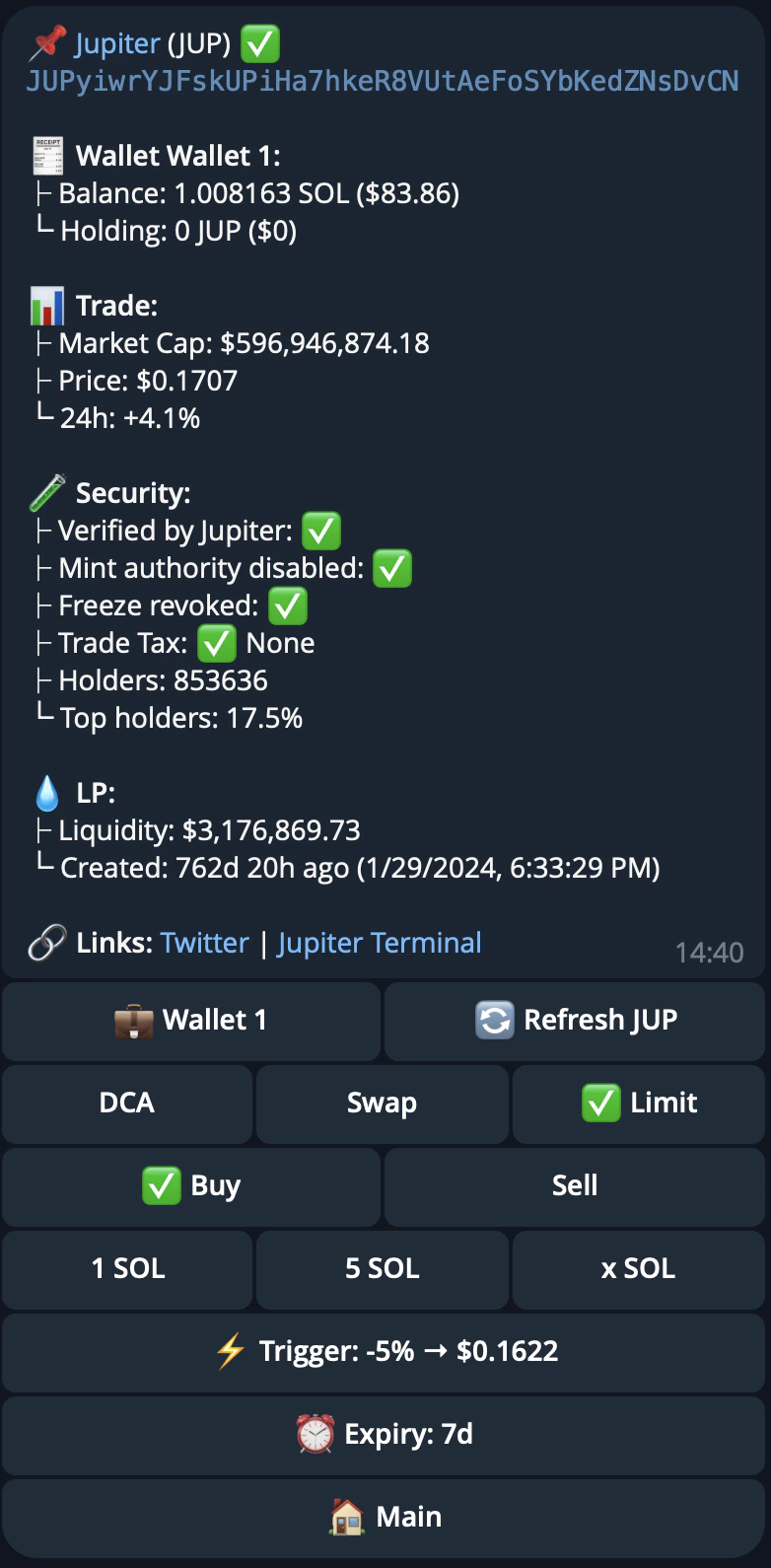
- Set buy orders when price drops to your target
- Set sell orders when price reaches your target
- Set target prices as specific amounts or percentage changes (+/- %)
- Orders execute automatically when triggered
- Set an expiry for your orders (default: 7 days, or choose from presets like 10m, 1h, 1d, 3d, 30d)
DCA - Dollar Cost Averaging
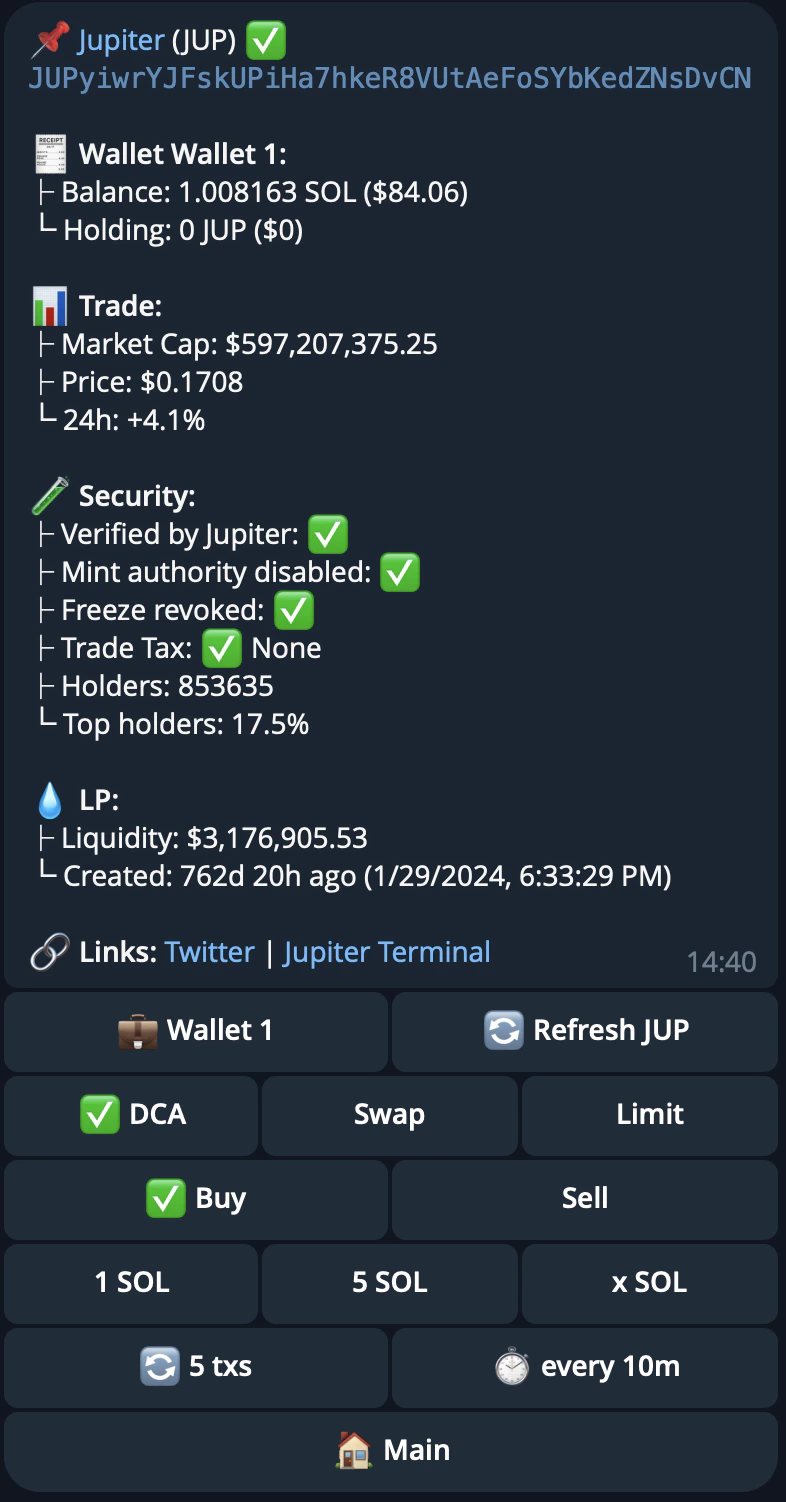
- Automate recurring purchases at set intervals
- Spread your investment over time
- Reduce impact of price volatility
Step 6: View Your Holdings
- Go back to the main menu
- View your portfolio with PnL tracking — see unrealized, realized, and total PnL per token, aligned with jup.ag
Security Best Practices
- ✅ Never share your private key with anyone
- ✅ Keep some SOL in your wallet for transaction fees
- ✅ Verify addresses before sending large amounts
- ✅ Use the export feature only when necessary
- ✅ Keep your Telegram account secure (2FA enabled)
Next Steps
Now that you’ve learned the basics, explore these guides:Wallet Management
Manage multiple wallets and private keys
Portfolio & Holdings
Track your PnL
Active Orders
Manage DCA and limit orders
Referrals & Invites
Earn referral fees
Copy Trading
Mirror trades from other wallets
Sniper Mode
Auto-buy new token launches
Commands
Learn all available commands
FAQs
Common questions and answers
Need Help?
- Check out our FAQs
- Join our Community on Discord