Copy Trading is available for users in a clan. Copy trading by wallet address is coming soon.
Dashboard
The dashboard lists all your active (🟢) and paused (🔴) copy trade configs — who you’re following, their sizing strategy, and daily limits. Tap any config to manage it, or hit ➕ Add Copy Trade to set up a new one.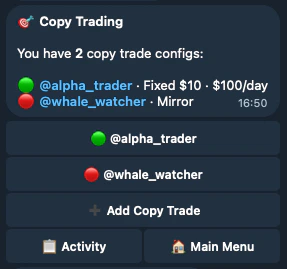
Setting Up a Copy Trade
The setup wizard walks you through each step.Choose a Target
Pick a clan member from the list (shows their PnL, win rate, and total predictions) or type any username manually. You can only follow users who are registered with the bot.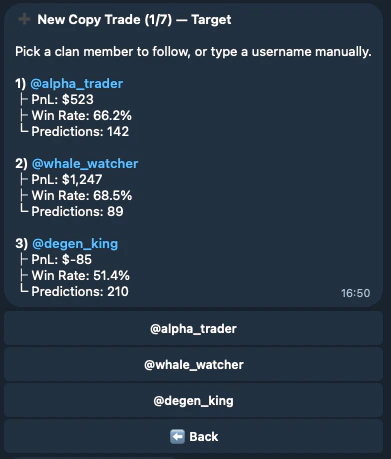
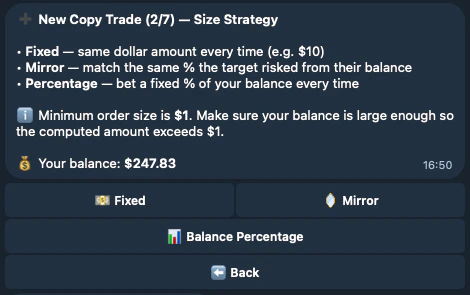
Size Strategy
Three options:- Fixed — Same dollar amount every time (e.g. $10 per prediction)
- Mirror — Match the same percentage the target risked relative to their balance
- Percentage — Bet a fixed % of your own balance each time
Risk Limits
Cap how much this copy trade can spend per day. Pick a preset ($50–$500) or type a custom amount. You can also choose No Limit to skip.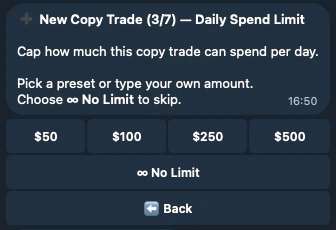
- Price Range — Only copy predictions when the market price is within a range you set (e.g. $0.10–$0.90)
- Top-ups — Choose whether to copy repeated bets on a market the target already has a position in, or only the first bet
Review & Confirm
Review all your settings before saving. Every field has an ✏️ edit button to jump back and change it. Tap ✅ Confirm to activate the copy trade.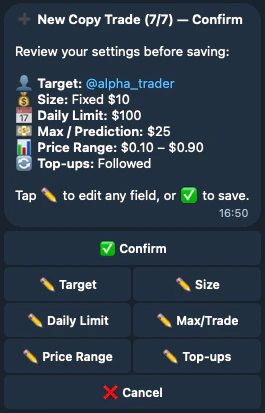
Managing Copy Trades
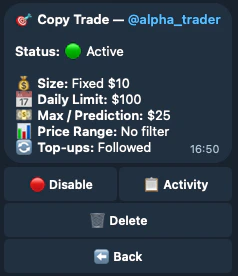
From the dashboard, tap any config to see its full settings. From here you can:- 🔴 Disable / 🟢 Enable — Pause or resume without deleting
- 📋 Activity — See what the bot has done
- 🗑 Delete — Remove the config entirely
Activity Log
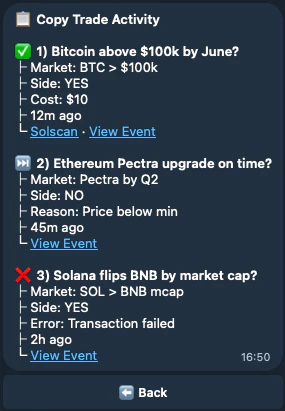
The activity log shows every action the bot took (or skipped) on your behalf:- ✅ Executed — Prediction was placed, with cost and transaction link
- ⏭️ Skipped — Prediction was skipped, with a reason (e.g. “Price below min”, “Daily limit reached”)
- ❌ Failed — Something went wrong (e.g. transaction failed)
Finding Traders to Copy
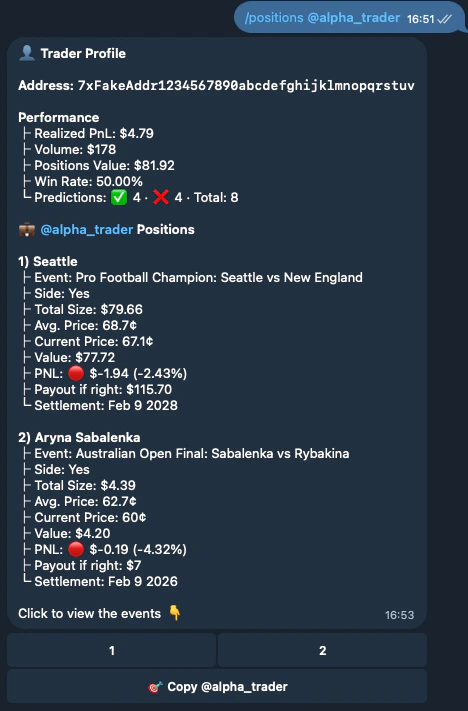
Most group notifications — such as prediction alerts and resolved markets — include a 🎯 Copy button, so you can start copying a trader directly from any notification. You can also use/positions @username if you already know who you want to follow. This shows their performance stats (PnL, win rate, volume) and active positions.