

Before you start
- A Chromium-based browser: Chrome, Brave, Arc, Edge or Opera. Firefox is not supported.
- Depending on where your wallet is today, one of these:
- nothing, if this is your first wallet;
- the Jupiter Mobile app, if you already use it;
- the email or social account you sign in with, if you use Jupiter ID;
- the seed phrase or private key of another Solana wallet.
- Pen and paper if you create a new wallet, to write down its seed phrase.
A wallet, not jup.ag
Jupiter Wallet is a : it holds the keys to your funds and signs transactions. Jupiter’s products, such as Earn, Stake or Perps, live on jup.ag. When you act on jup.ag or another Solana app, the site asks Jupiter Wallet for a signature, and the extension shows you what you are about to approve. Your keys are stored on your device; Jupiter never has access to them.1. Install the extension
1
Open the official listing
Go to the Jupiter Wallet listing on the Chrome Web Store and add it to your browser.
2
Check the publisher
The listing must be published by
[email protected]. Any other listing, installer or download that claims to be Jupiter Wallet is not official.3
Pin it to your toolbar
Click the puzzle-piece icon in your browser’s toolbar and pin Jupiter Wallet, so it is one click away.
On Edge and Opera, you may need to allow extensions from the Chrome Web Store in your browser settings first.
2. Bring in your wallet
The first time you open Jupiter Wallet, the Welcome screen offers Create a new wallet, Import an existing wallet, and a Sync wallets link for Jupiter Mobile users. Choose the path that matches where your wallet is today.- First wallet
- From Jupiter Mobile
- Jupiter ID
- From another wallet
Select Create a new wallet, then New Seed Phrase. Read the warnings, then select Reveal Seed Phrase: the extension shows 24 words. Write them down on paper, in order, and keep them offline.
3. Choose your password
During setup, Jupiter Wallet asks you for a password. It unlocks the extension on this computer only. It is not your seed phrase, and it cannot recover your wallet.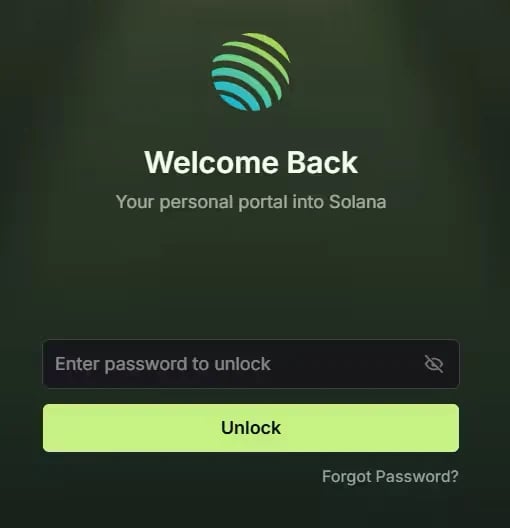
The unlock screen asks for this password each time the wallet is locked.
4. Lock it when you step away
Jupiter Wallet has no log-out: it stays open until it locks.- To lock it automatically, open the three-dot menu → Settings → Security → Auto Lock Time, and pick how long the wallet stays unlocked. A short delay is safer if other people use your computer.
- To lock it now, open the three-dot menu → Lock Wallet.
- Optionally, Settings → Security → Biometric Unlock lets you unlock with your device’s biometrics instead of typing the password.
What you should see
Jupiter Wallet opens on your wallet: your balance, the Swap, Send, Receive and Buy buttons, and tabs for Tokens, DeFi, NFTs and Activity.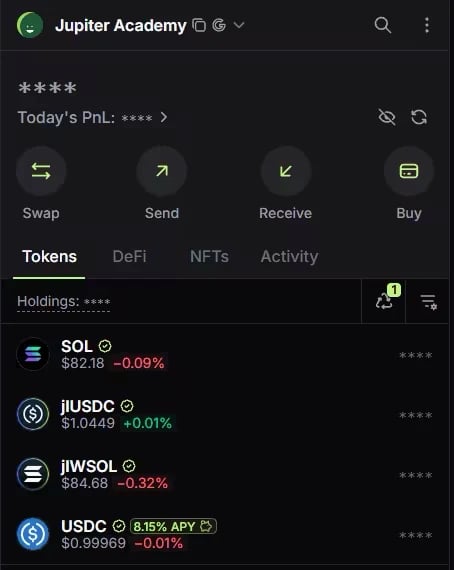
Jupiter Wallet with balances hidden. Prices and rates in the screenshot date from when it was taken.
Before you approve your first transaction
- The approval screen shows what a transaction does to your balances. Jupiter Wallet also has it scanned by Blockaid and shows a warning when it looks risky or malicious. Approvals on jup.ag and other dApps the wallet trusts are not scanned. See Risk warnings.
- Swaps you make inside Jupiter Wallet route through Jupiter Ultra, which protects them against .
- The Auto Approve setting (three-dot menu → Settings → Preferences) signs transactions on Jupiter and Meteora without asking you. It is faster, but you no longer review each transaction. Leave it off unless you accept that trade-off.
Go deeper
Getting started with Jupiter Wallet
Every create, import and sync option, hardware wallets and watch addresses.
Jupiter Wallet security
Password, locking, key export, Transaction Protection and risk warnings.