

What makes an NFT different
A regular token like or USDC is fungible, meaning every unit is identical and interchangeable. One USDC is exactly equal to any other USDC. Fungible tokens are also divisible: you can split 1 SOL into 0.1 SOL and 0.9 SOL, and the two parts together are still worth exactly 1 SOL. An NFT is non-fungible: each one is unique, and it cannot be split. You can’t send “10% of an NFT”: you either own it or you don’t. Two NFTs from the same collection share style and origin, but each has its own ID, ownership history, and metadata. What you actually own when you “own an NFT” is a record on the blockchain that points to the asset (an image, video, or file, often hosted on decentralized storage). That record proves that you, and only you, control it from your wallet.Real use cases
NFTs are more than just profile pictures. The most common categories:- Profile pictures (PFPs) and art: collections like Mad Lads, Claynosaurz, and Solana Monkey Business, which often double as community membership.
- Gaming: NFTs can represent in-game items, characters, and land plots that you truly own and can trade outside the game itself.
- Tickets and access: NFTs can serve as event tickets, membership passes, or keys to gated content.
- Domain names: a Solana Name Service domain (yourname.sol) is a human-readable name that points to your address, and it can be wrapped into an NFT to be traded. Jupiter Wallet accepts .sol domains as recipients when you send.
- Position NFTs: a growing pattern where your position in a protocol is itself an NFT. On Jupiter Lend, each Borrow or Multiply position is represented by a Position NFT that stores the position’s data. Because the NFT is transferable, moving it to another wallet transfers the entire position with it.
How Jupiter Wallet and Jupiter Mobile handle NFTs
Jupiter Wallet (the browser extension) and Jupiter Mobile (the app) are both self-custodial Solana wallets: only you control your keys.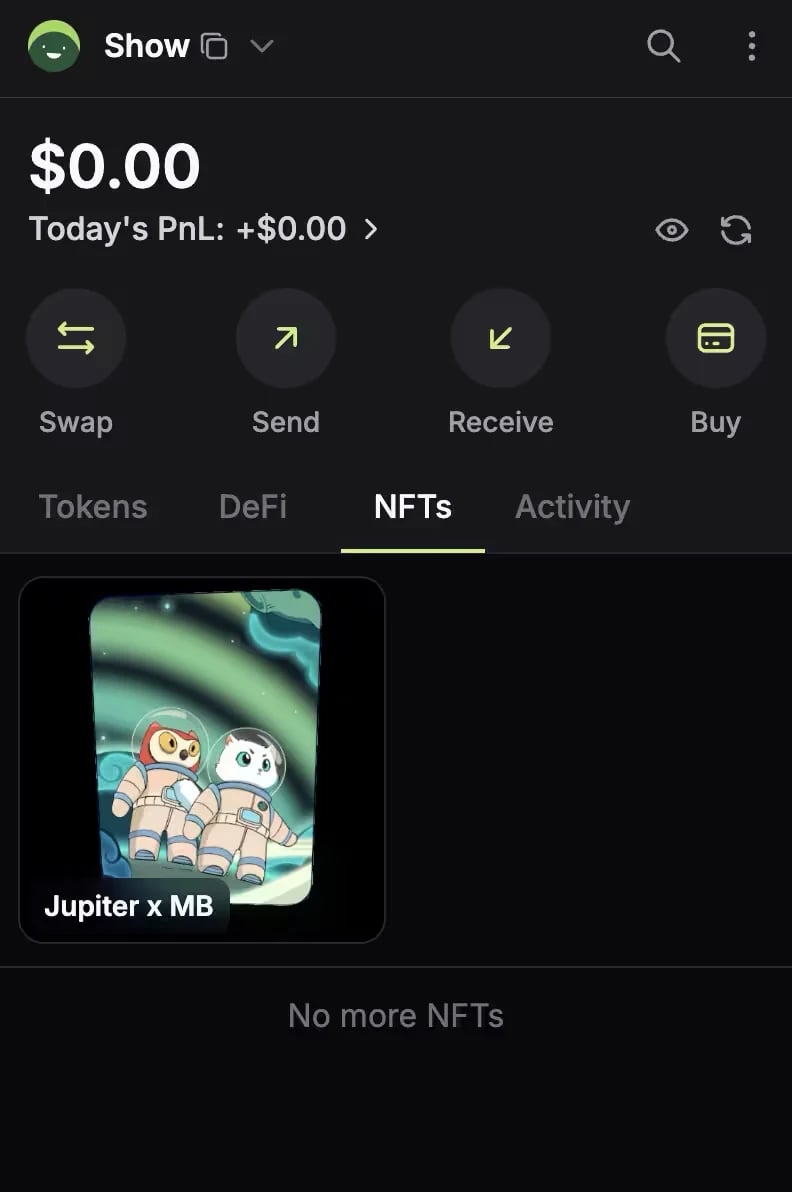
The NFTs tab in the Jupiter Wallet browser extension.
- Receive any NFT to your Solana address, the same address as for tokens.
- Display your NFTs: in Jupiter Wallet under the NFTs tab, and in Jupiter Mobile under the NFTs tile of the Portfolio tab (labeled Account in the Android app).
- Send NFTs, in Jupiter Wallet only: open an NFT to see its details or send it to another wallet. Jupiter Mobile displays NFTs but cannot send or trade them.
- Filter spam: Jupiter Wallet filters out most spam and scam NFTs automatically.
- Ask you to approve each transaction before signing, unless you turn on Auto-Approve for a site (Jupiter or Meteora), which then signs that site’s transactions without a prompt, in either wallet.
Risks and how to stay safe
Read every signature request carefully: if you do not recognize the action, reject it. No legitimate site, mint, or support agent ever needs your seed phrase or private key.- Drainer signatures: a malicious site asks you to sign what looks like a standard connection, but the transaction actually transfers your NFTs out of your wallet. Read every transaction carefully before signing and reject anything unexpected.
- Fake mint pages: scammers clone the website of a real upcoming collection. You attempt to but instead lose SOL or other assets. Bookmark official sites and verify the URL twice before connecting your wallet.
- Airdrop bait: a random NFT appears in your wallet with a link inside promising free SOL or rewards. The link leads to a site built to drain your wallet once you connect and sign. Ignore unsolicited NFTs and never click links embedded inside them.
- DM impersonation: fake support agents on Discord or X request your or a “verification” signature under the guise of helping you. Real support will never DM you first or ask for your seed phrase.
- Read every transaction before signing. If a popup mentions transferring NFTs you didn’t intend to move, reject it.
- Take wallet warnings seriously. In the Jupiter Wallet extension, transactions requested by other sites are scanned by Blockaid, and a warning appears when one looks risky or malicious. Approvals on jup.ag and other dApps the wallet trusts are not scanned. See Risk warnings.
- Never type your seed phrase: not on a website, not in a DM, not in a “support” form. These requests are phishing attempts. Real support never asks for it.
- Ignore unsolicited NFTs. If a random NFT appears, don’t click any link inside it.
- Bookmark official marketplaces. Type magiceden.io or tensor.trade directly; never click ads or links sent in DMs.
- Use a hardware wallet for valuable holdings. The Jupiter Mobile app supports Ledger (Bluetooth models only) and Trezor; the Jupiter Wallet extension supports Ledger, Keystone, and Trezor.
Tutorial: receiving and verifying your first NFT
Here is the flow when someone sends you an NFT. If you mint one instead, it goes to the wallet you connected on the mint site: skip to step 4.- Open Jupiter Wallet or Jupiter Mobile and unlock it.
- Get your Solana address. In Jupiter Wallet, select Receive. In Jupiter Mobile, tap Deposit, then Receive funds. Copy the address or share the QR code.
- Send the address to whoever is transferring the NFT. The transfer executes in seconds.
- To verify it, open the NFTs tab in Jupiter Wallet, or the NFTs tile on the Portfolio tab in Jupiter Mobile: the new NFT appears there. Some compressed NFTs may not display correctly in Jupiter Wallet. You can also look up your address on a block explorer such as Solscan, or on Magic Eden or Tensor, for more details.
- Bookmark the marketplaces you use. Never connect through links sent by strangers.
Go deeper
Portfolio in Jupiter Mobile
Where NFTs, tokens and DeFi positions appear in the app, and how to hide spam tokens.
Portfolio in Jupiter Wallet
The NFTs tab, spam filtering and sending NFTs from the browser extension.
Position NFT
What a Jupiter Lend Position NFT holds and why you must keep it.